Creating an issue
Creating an issue takes seconds. The only things Specivo insists on are a subject and a tracker — everything else is optional and easy to add later.
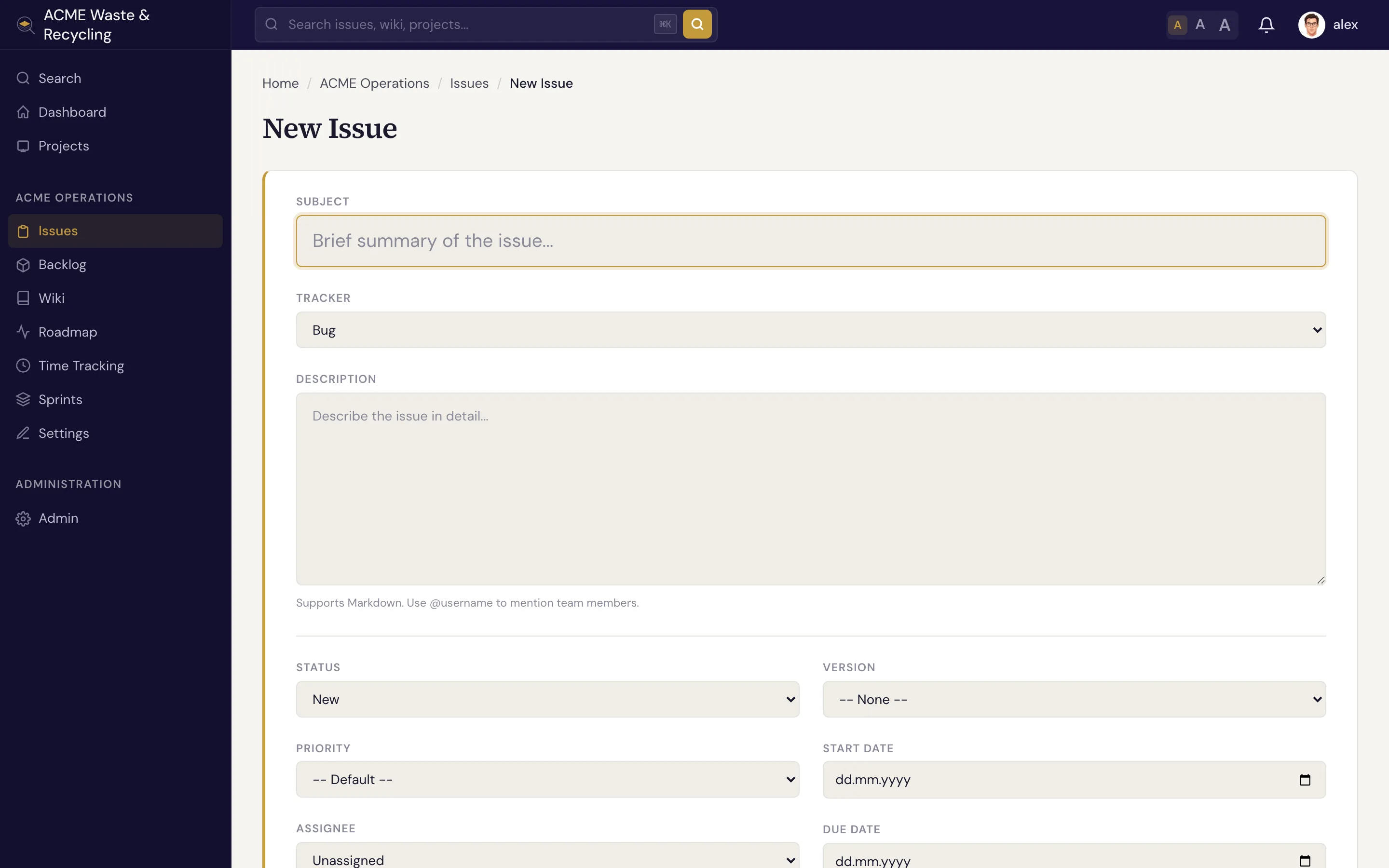
Steps
- Open the project you're working in, then click New issue.
- Choose a tracker — Bug, Feature, Task, or Support. This sets the issue's type.
- Write a clear subject. Keep it short and specific: "Login button does nothing on mobile" beats "login broken". The subject can be up to 1024 characters, but shorter is better.
- Describe the work in the description box. It's Markdown, so you can
use headings, lists, tables, and fenced code blocks. Mention a teammate with
@usernameto pull them in. - Set the optional fields that apply — assignee, priority, target version, sprint, start and due dates, and an estimate. You can skip any of these and fill them in once the issue exists.
- Click Create (or Save).
That's it. The issue gets the next number in the project (for example ACME-57) and opens on its own
page.
Required vs optional
| Required | Optional |
|---|---|
| Subject | Description, assignee, priority, category |
| Tracker | Target version, sprint, start/due dates, estimate, parent, watchers, metadata |
Write a description you'll thank yourself for later
A good description says what the problem or goal is, how to reproduce a bug, and what "done" looks like. The text is indexed for search, so a clear write-up makes the issue easy to find months later.
After creating
- Add structured fields like story points or a git branch — see Issue metadata.
- Link it to related work — see Relations.
- Break large work into subtasks.
- As work progresses, update the status and % done.