History & linking
The wiki keeps a complete record of how every page changed, and it ties pages to each other — and to your issues — so knowledge stays connected instead of scattered.
Version history
Every time a page is saved, Specivo stores a version with its author and the optional edit comment. Open a page's History to see the full list of versions in order.
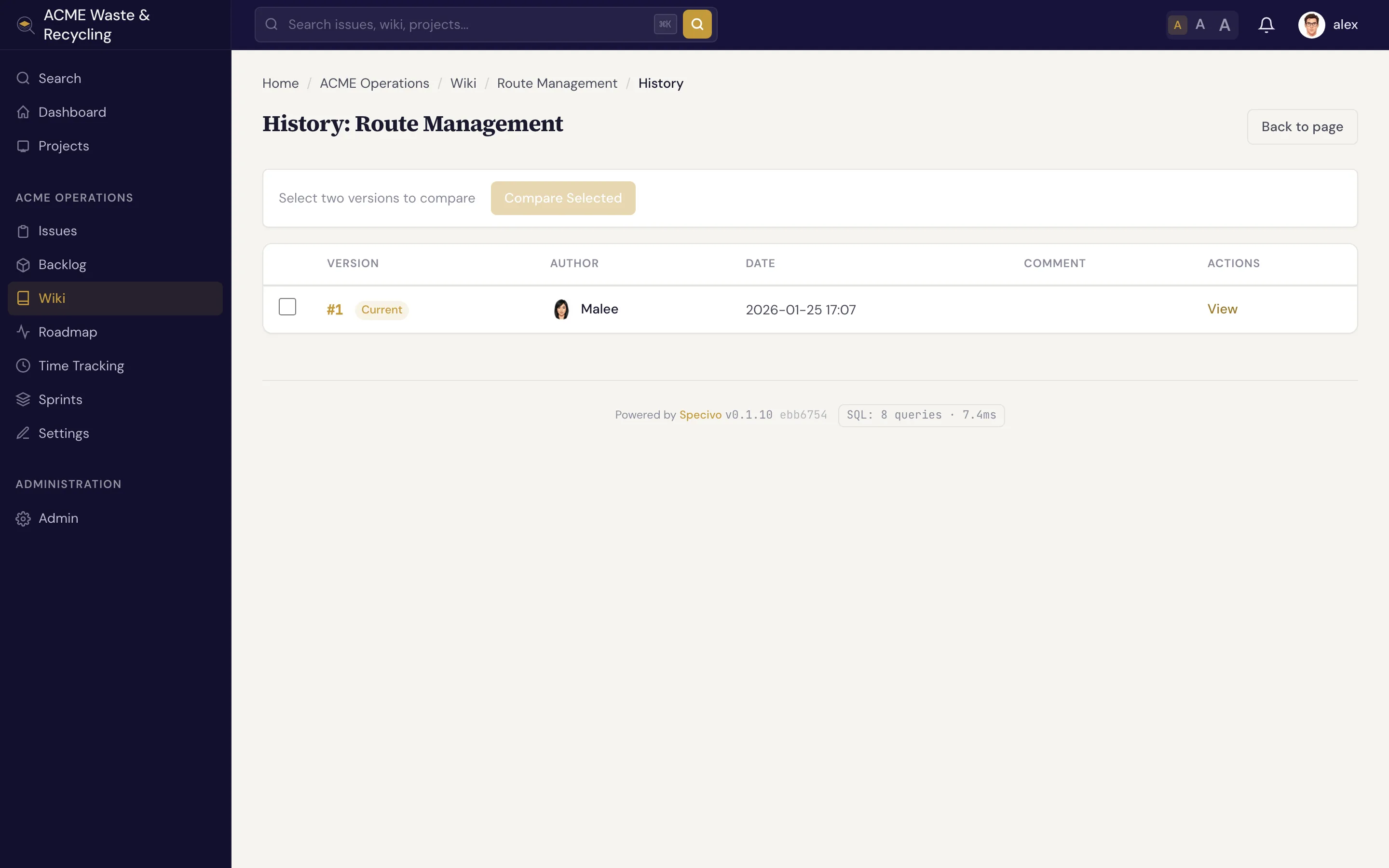
From the history you can:
- View a past version to read the page as it was at that point.
- Compare versions to see what changed between two saves.
- Revert to an earlier version with one click. Reverting doesn't erase anything — it creates a new version whose content matches the old one, so the revert itself is recorded in the history too.
This is why edit comments matter: a list of dated, commented versions tells the story of a page at a glance. See Creating & editing pages.
Delete and restore
Deleting a wiki page is a soft delete — the page moves to a trash rather than being destroyed. From the trash you can restore a page, bringing it back with its history intact.
Deleting moves a page to trash, not oblivion
A deleted page disappears from the wiki and from normal navigation, and any [[links]] pointing to
it will no longer resolve until it's restored. Restore it from the trash if you removed it by
mistake. Treat deletion as "hide and archive," not as a guaranteed permanent wipe — but still
delete deliberately, since readers and links lose the page in the meantime.
Cross-link pages
Link one wiki page to another with double brackets:
[[Page Name]] renders as a link to that page. Because slugs are
normalized, the link resolves whether you write [[Release Process]],
[[release-process]], or [[Release_Process]] — they all point to the same page. You can link by the
page's title or by its slug.
Build a web, not a pile
Cross-linking is what turns a folder of pages into a knowledge base. Link from an overview page down to its details, and from detail pages back up — readers (and AI agents) follow the trail instead of hunting.
How wiki and issues connect
Wiki pages and issues live in the same project and surface together in search. Press ⌘K (Ctrl+K) anywhere and Specivo searches issues, wiki pages, comments, and attachment descriptions at once — by keyword and by meaning. A decision you wrote on a wiki page turns up next to the issue that prompted it. See Finding issues.
To tie a specific issue and page together, link to the issue from the wiki page (paste its URL) and reference the page from the issue's description or a comment. The two halves of a piece of work — the what in the issue and the why in the wiki — stay one click apart.
What's next
- Wiki overview — pages, slugs, nesting, and protected pages.
- Creating & editing pages — write, edit, and attach files.