Your first 10 minutes
This page walks you through the everyday happy path. It assumes someone has already installed Specivo and given you a sign-in.
1. Sign in
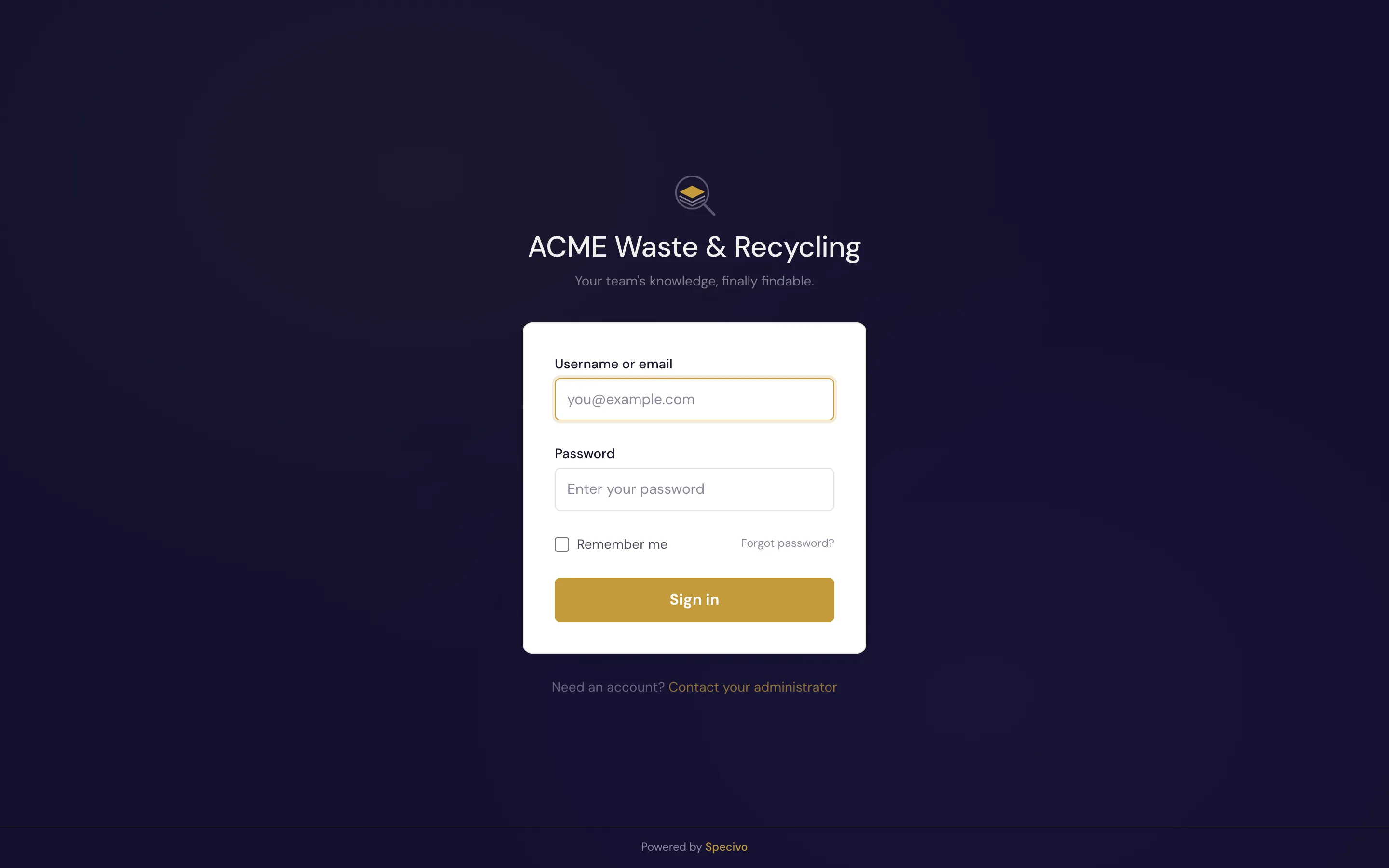
Open your team's Specivo URL and sign in with the username (or email) and password you were given.
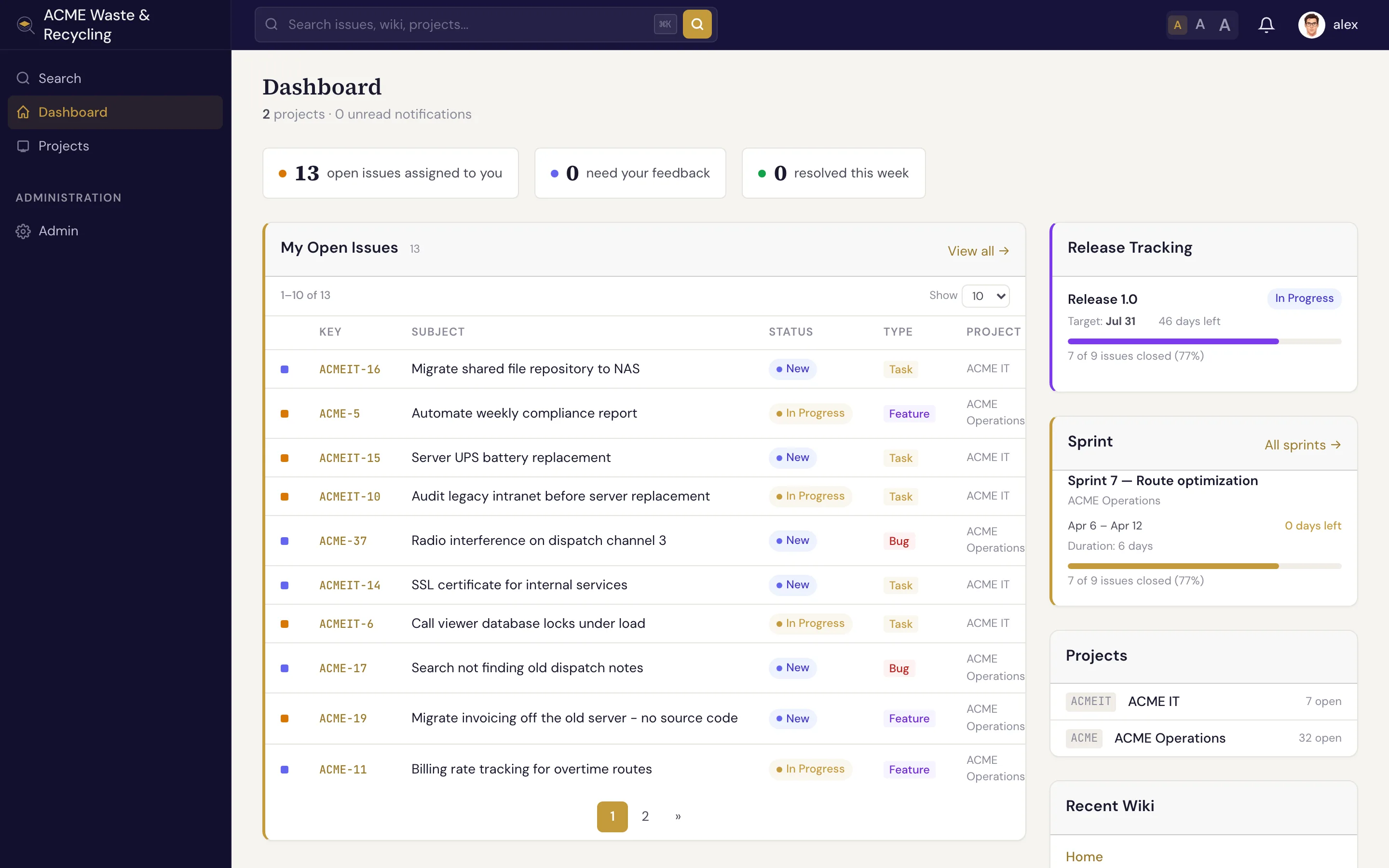
After signing in you land on your dashboard — a personal overview of issues assigned to you and recent activity across your projects.
2. Open your project
Use the Projects item in the left sidebar to open the project you work in. The project overview shows its issues, wiki, roadmap, and members. See Projects.
3. Find an issue
Open the Issues list for your project. Every issue shows its key (like ACME-42), subject, tracker,
status, priority, and assignee. Click any row to open the issue.
On the issue page you can read the description, see its relations to other issues, scroll the comment history, and view attachments and metadata.
4. Leave a comment
On an issue, scroll to the comment box, write an update in Markdown, and post it. Mention a teammate with
@username to notify them. Your comment joins the issue's permanent history. See
Comments & reactions.
5. Change the status
When you start work, set the issue's status to In Progress; when you finish, set it to Resolved. You can also nudge the % done and reassign the issue. See Updating & editing issues.
6. Create an issue
Spotted something that needs doing? Click New issue, pick a tracker (Bug, Feature, Task, or Support), write a clear subject, and save. That's the whole minimum. See Creating an issue.
7. Search
Press ⌘K (Ctrl+K on Windows/Linux) anywhere and type. Specivo searches issues, wiki pages, comments, and attachment descriptions together, by keyword and meaning. See Finding issues.
What next?
- Skim Core concepts so the vocabulary clicks.
- Learn the interface layout.
- When you're ready for AI assistance, set up the MCP server.