Navigating the interface
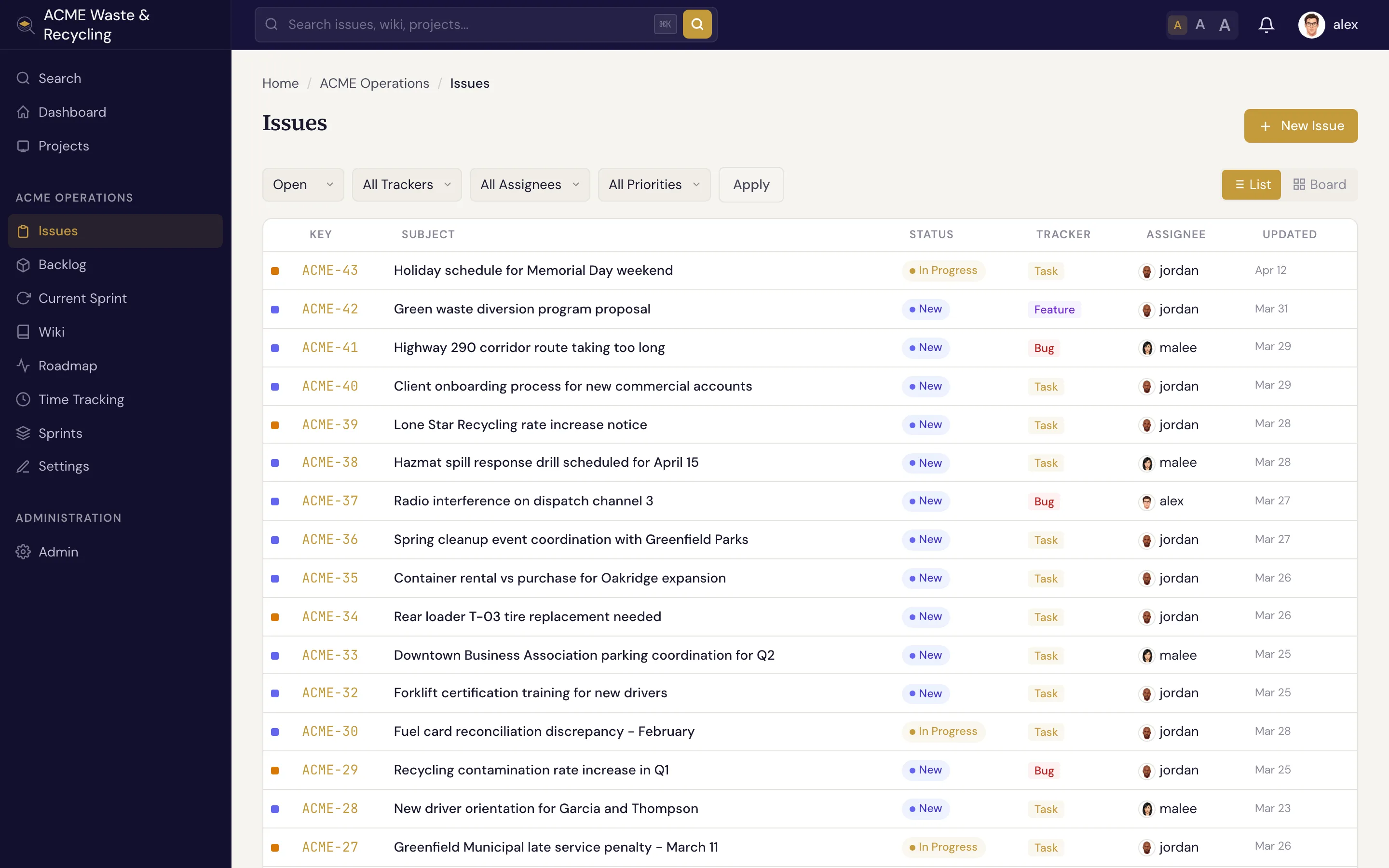
Specivo has two consistent navigation areas on every page: a sidebar down the left for getting around, and a header across the top for search and your account.
The sidebar (left)
The sidebar is how you move around. From top to bottom:
- Search, Dashboard, Projects — always available.
- Your current project — once you're in a project, its section lists Issues, Backlog, Current Sprint, Wiki, Roadmap, Time Tracking, Sprints, and Settings.
- Administration — an Admin link, shown only to administrators.
The Issues item shows a badge with the project's open-issue count. To switch projects, click Projects and pick another, or use the project list in the sidebar.
The header (top)
Running across the top of the main area:
- Search box — search issues, wiki, and projects. Press ⌘K (Ctrl+K on Windows/Linux) from anywhere to jump straight into it. See Finding issues.
- Font size toggle — switch between three text sizes for comfortable reading.
- Notifications — a bell with an unread badge; open it for recent mentions and updates, or View all notifications.
- Your account menu — your avatar and name open a menu with Profile, Preferences, API Keys (for the MCP server and REST API), and Sign out.
Running timer
If you start a time-tracking timer on an issue, a live timer appears in the header so you can stop and log it from anywhere. See Time tracking.
On a phone or tablet
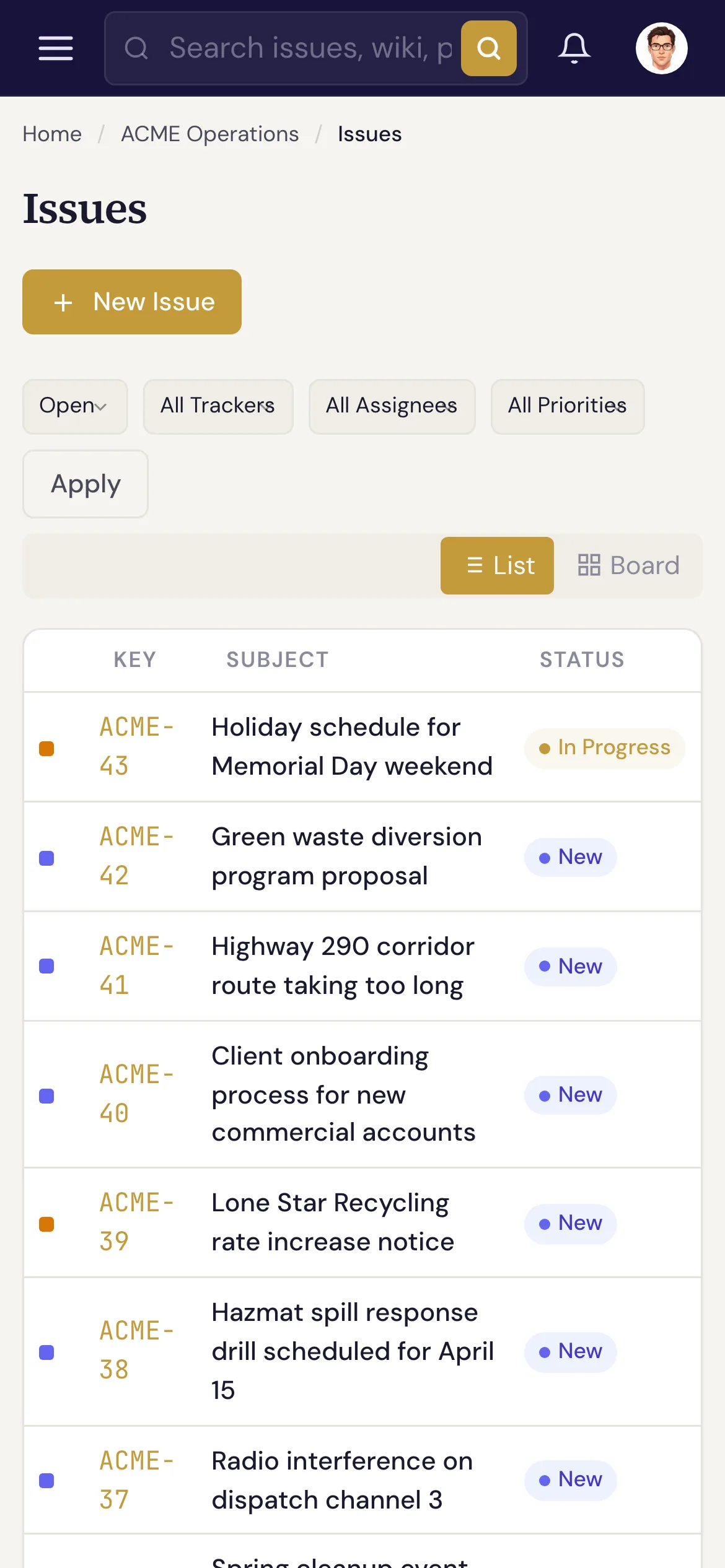
Specivo is responsive. On narrow screens the sidebar collapses behind the menu button (☰) in the header — tap it to slide the sidebar out. Every page and action is still available, just stacked for a smaller screen.