Updating & editing issues
Issues change as work moves forward. You can edit almost any field on an issue at any time, and Specivo keeps a record of what changed.
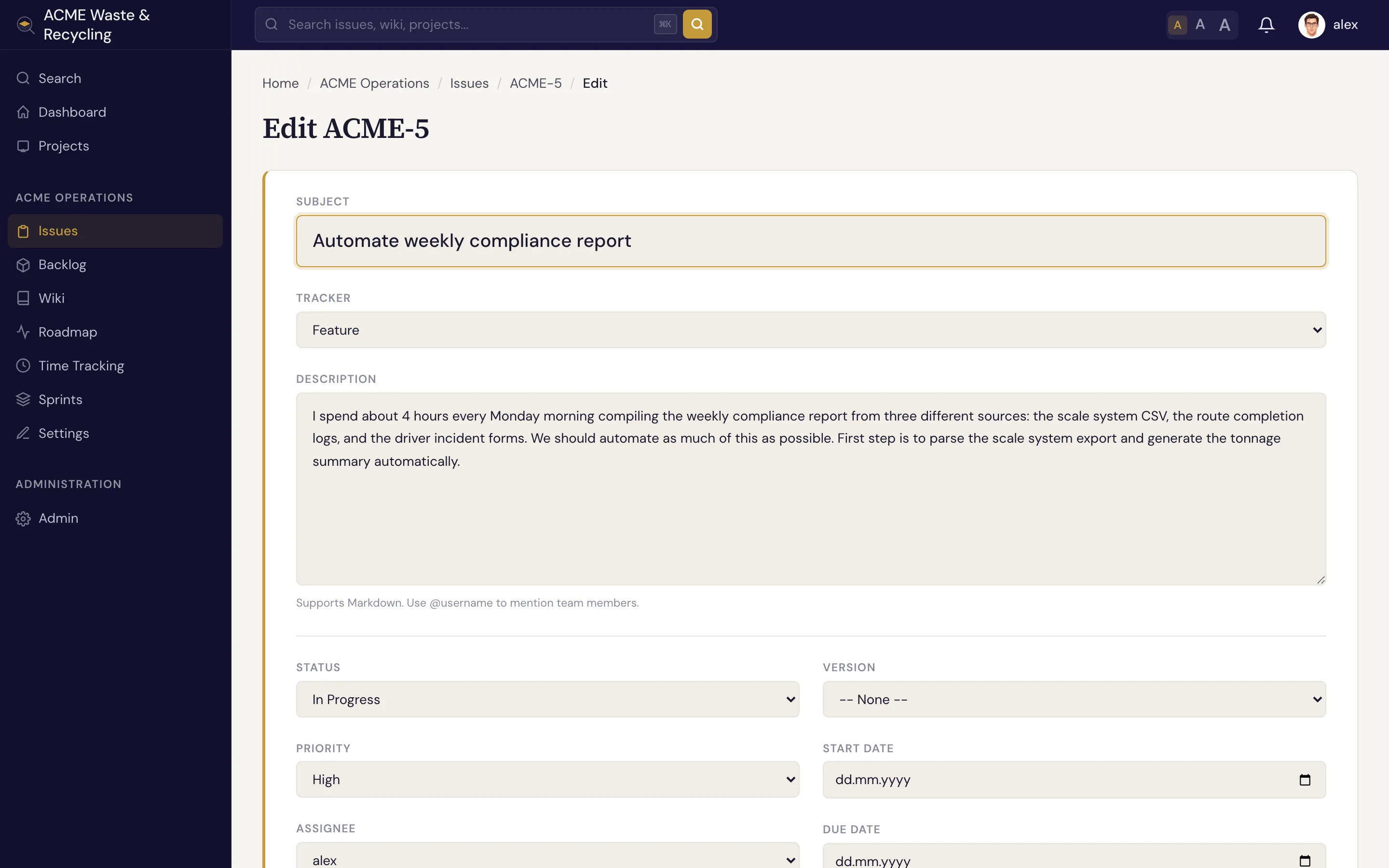
Change the status
The most common update is moving an issue along its lifecycle. Set the status to In Progress when you start, and to Resolved when you finish. Resolving an issue sets % done to 100 automatically. See Statuses & workflow for the full set of statuses and how they drive the board.
Reassign
Change the Assignee to hand the issue to someone else. The new assignee is responsible for it from then on; add watchers if other people still need to follow along.
Edit the subject and description
Click into the subject or description to fix wording, add detail, or restructure. The
description is Markdown, so formatting, code blocks, and @username
mentions all work.
Set % done and other fields
- Nudge % done as work progresses (0–100). It moves to 100 when the issue is resolved or closed.
- Adjust priority, category, target version, sprint, start/due dates, and the estimate as plans firm up.
- Fill in any metadata fields the project defines.
Comments vs field edits
To discuss the work or post an update, add a comment. To record progress on the work itself, change the fields. Both end up in the issue's history.
Move an issue to another project
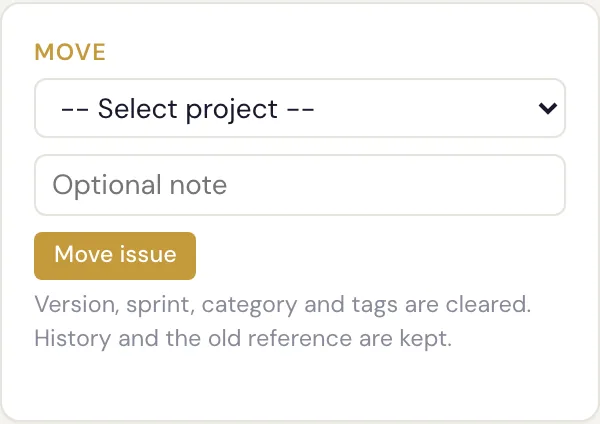
Sometimes an issue lands in the wrong place — a request filed in your inbox project really belongs to the team that owns it. The issue detail sidebar has a Move card: pick a target project, add an optional note explaining the move, and submit.
The issue keeps its internal identity but takes a new per-project number in the target. An issue
that was INB-1 becomes HOME-1 once it lands in the HOME project. The old reference still
resolves — paste INB-1 anywhere and it redirects to the issue at its new key, so links you shared
earlier don't break.
Moving carries the issue's substance with it. Preserved: full history and comments, relations, attachments, watchers, time entries, and custom metadata. Cleared: the fixed version, sprint, category, and tags — these belong to the old project and have no meaning in the new one, so you set them fresh in the target.
Only standalone issues can move
An issue with a parent or its own subtasks can't be moved as-is — detach it from the hierarchy first, move it, then rebuild the links if you still need them. This keeps a parent and its children from being split across projects.
To move an issue you need edit permission in the source project and the right to add issues in the
target. The move is also available to AI agents over the REST API
(POST /api/v1/issues/{ref}/move/) and the specivo_move_issue MCP tool — see
What agents can do.
Everything is recorded
Editing the core fields of an issue — status, assignee, priority, dates, % done, and so on — is logged in the issue's history, with who changed what and when. Nothing is silently overwritten, so you can always see how an issue got to where it is.