Relations between issues
A relation is a typed link between two issues. Relations capture how work fits together: what blocks what, which issue duplicates another, what order things should happen in. They're informational links and dependency markers — they don't move issues through statuses on their own.
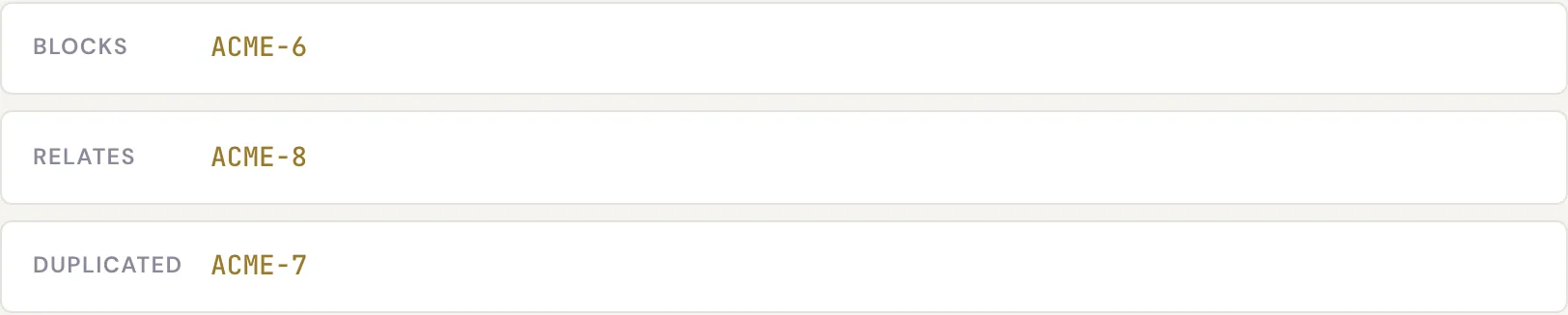
The relation types
Specivo has five canonical relations. Four of them are directional, so each one also has a reverse that shows up on the other issue automatically — nine named links in all.
| Relation | Reverse | What it means | When to use it |
|---|---|---|---|
| relates to | relates to | A plain, symmetric link between two issues | They're connected and worth reading together, with no dependency |
| duplicates | duplicated by | This issue describes the same thing as another | You found a second report of the same bug or request |
| blocks | blocked by | A blocked issue can't proceed until its blocker is done | One piece of work must finish before another can start |
| precedes | follows | A scheduling order: one should happen before the other | You want a sequence; precedes can carry an optional delay in days |
| copied to | copied from | Records that one issue was copied or derived from another | You split or cloned an issue and want to keep the trail |
relates is symmetric — it reads the same from either side. The other four are directional: if
ACME-10 blocks ACME-11, then ACME-11 shows blocked by ACME-10.
Precedes can carry a delay
When you add a precedes relation you can set an optional delay in days — useful when the follow-up work shouldn't start immediately after the first issue finishes.
No circular dependencies
Specivo prevents circular blocks and precedes chains. If A blocks B and B blocks C,
you can't then make C block A — the loop would be impossible to satisfy, so Specivo refuses it.
Add a relation
- Open the issue and find the Relations section.
- Choose the relation type (relates, duplicates, blocks, precedes, copied to).
- Enter the other issue (for example
ACME-11). - For precedes, optionally set a delay in days.
- Save. The reverse relation appears on the other issue automatically.
Remove a relation
In the Relations section, find the link you want to drop and remove it. The matching reverse link disappears from the other issue at the same time.