Finding issues
There are three ways to get to the issue you want: the list, the board, and search. Pick whichever matches what you're doing.
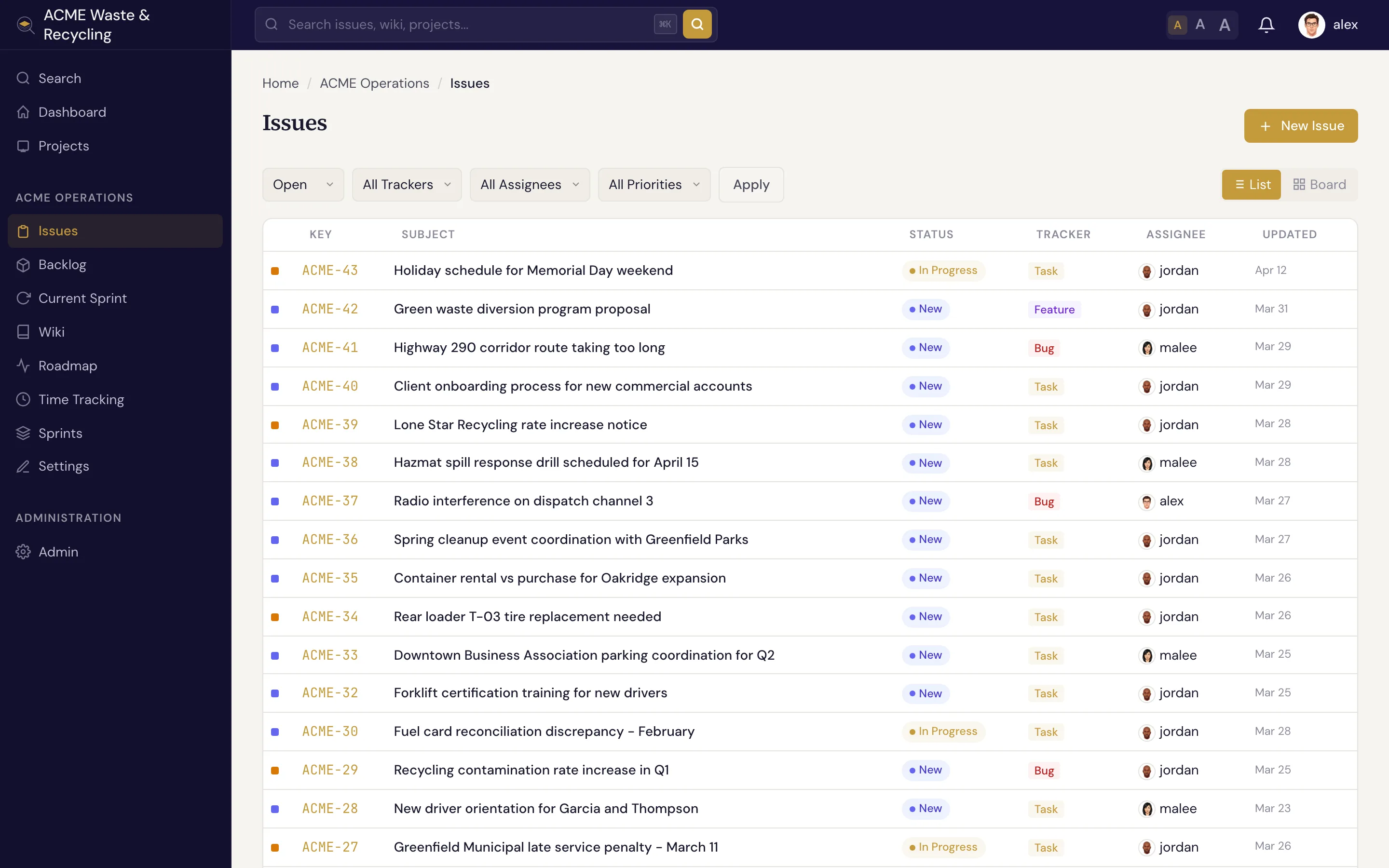
The issue list
The Issues list shows every issue in the project as rows, with columns for the key (like ACME-42),
subject, tracker, status, priority, and assignee. Filter the list to narrow it down — by status,
tracker, assignee, version, sprint, and more — and click any row to open the issue.
Filter by metadata or tags
If your project defines metadata, you can filter the list by a metadata
key=value match. For array fields, the filter matches when the array contains the value — for
example, every issue whose branches includes release/1.2. You can also filter by
tags from the search page — clicking any tag chip jumps straight there.
The board
The board view lays issues out as cards in columns by status category (backlog, active, done, closed). It's the quickest way to see where everything stands at a glance, and issues move across the columns as their status changes.
Search
Press ⌘K (Ctrl+K on Windows/Linux) anywhere in Specivo to jump to search and start typing.
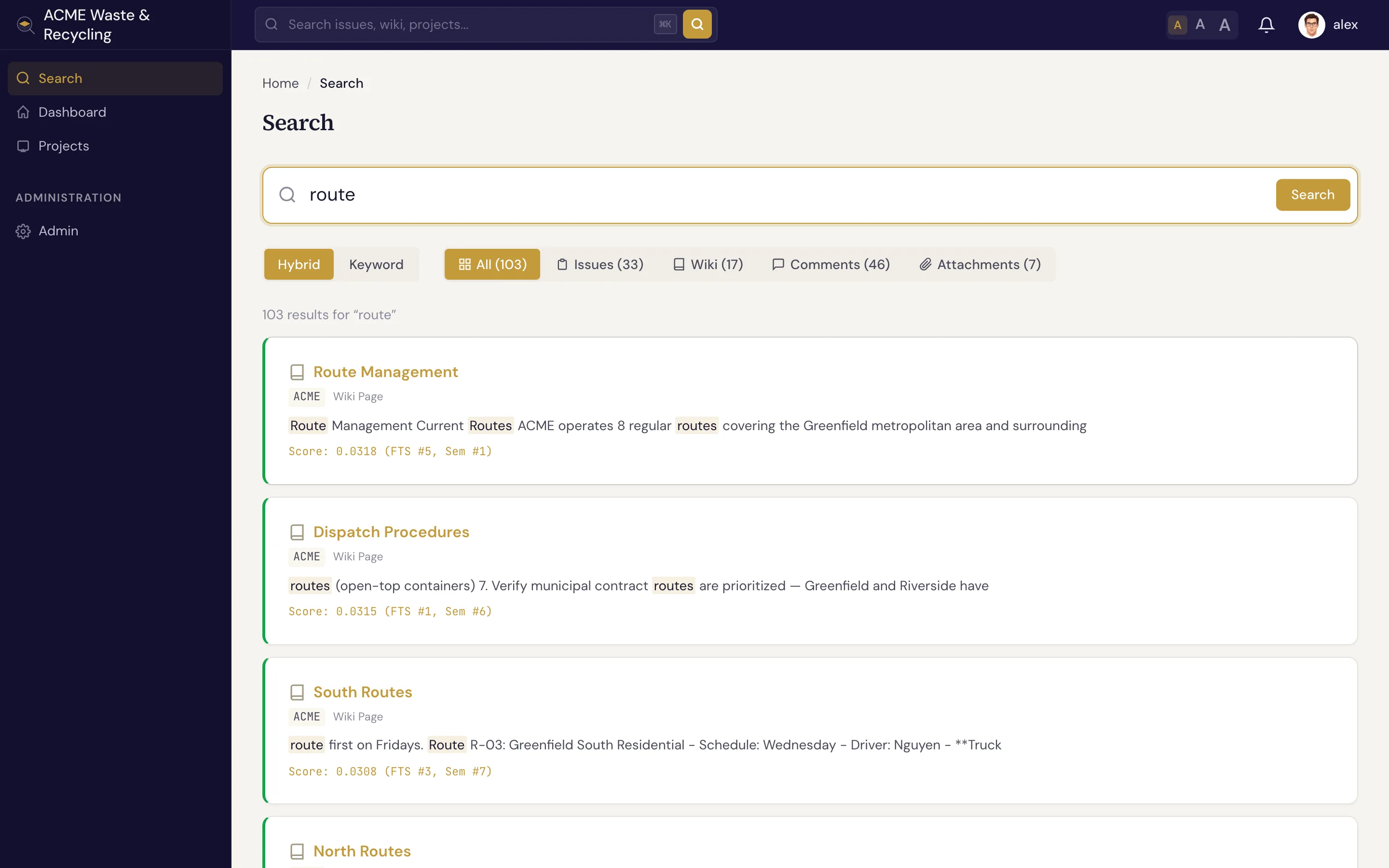
Specivo uses hybrid search — it combines exact keyword matching with semantic (meaning-based) matching, so it finds the right work even when the wording differs. Search "auth flow" and it can still surface an issue you wrote about the "login sequence". It searches across:
- issues (subjects and descriptions)
- wiki pages
- comments
- attachment descriptions
Semantic results not showing up?
Semantic search relies on an index the operator builds on the server. Until that's in place, keyword search still works — you just won't get the meaning-based matches. See Troubleshooting if results look thin.