Creating & editing pages
Writing in the wiki is the same loop every time: give a page a title, write Markdown, save. Each save becomes a new version you can look back on or roll back to, so there's no risk in editing freely.
Create a page
- Open the project's Wiki tab.
- Click New page.
- Type a title using spaces — for example
Release Process. Specivo derives the URL slug for you. - Write the body in Markdown.
- (Optional) Choose a parent page to nest it, and add an edit comment.
- Save.
That's the whole minimum — a title and some content.
Titles use spaces
Type Release Process, not Release_Process. The slug (release-process) is generated
automatically, and slugs are normalized so links resolve regardless of casing or separators. See
Wiki overview.
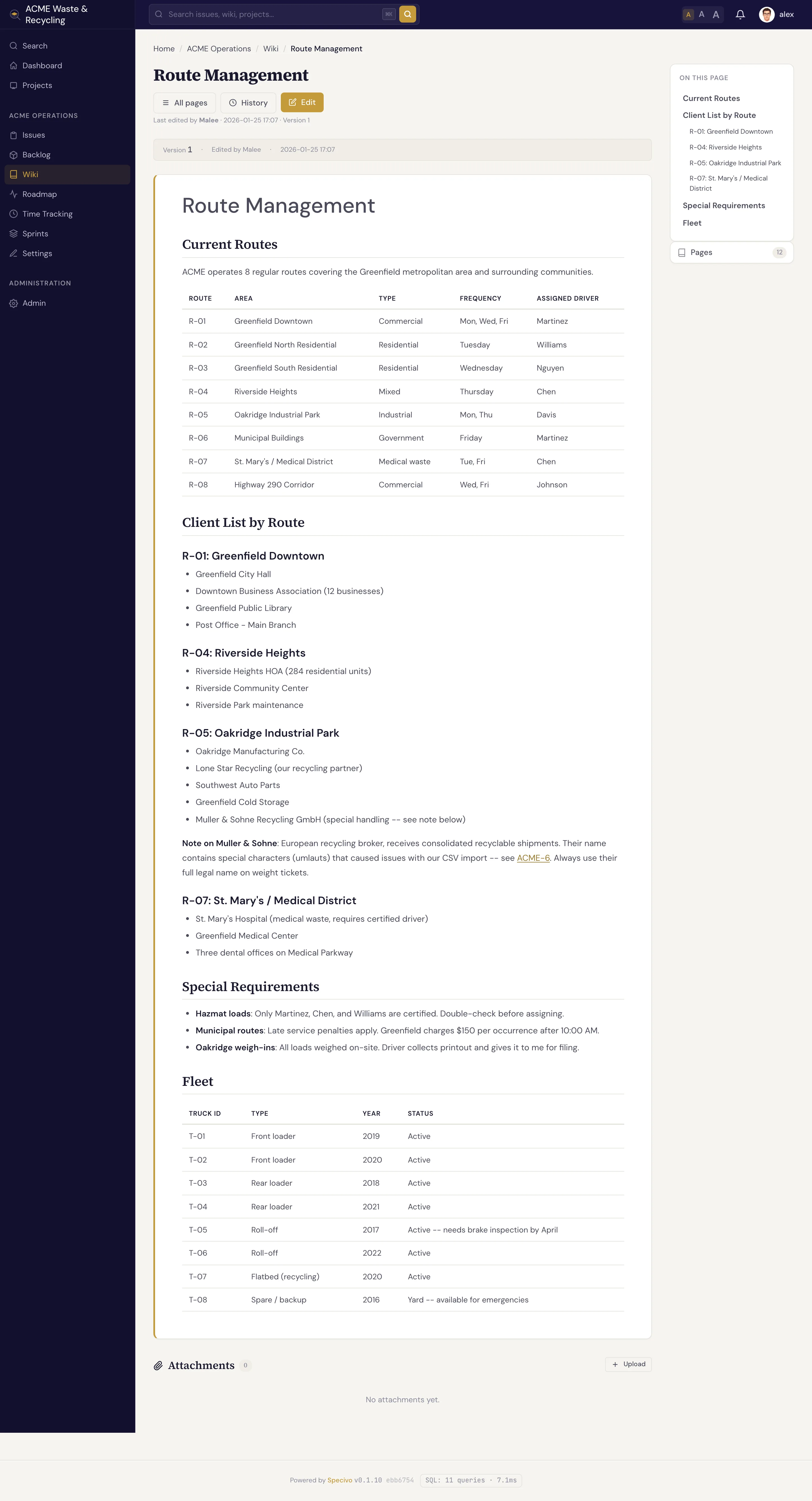
Edit a page
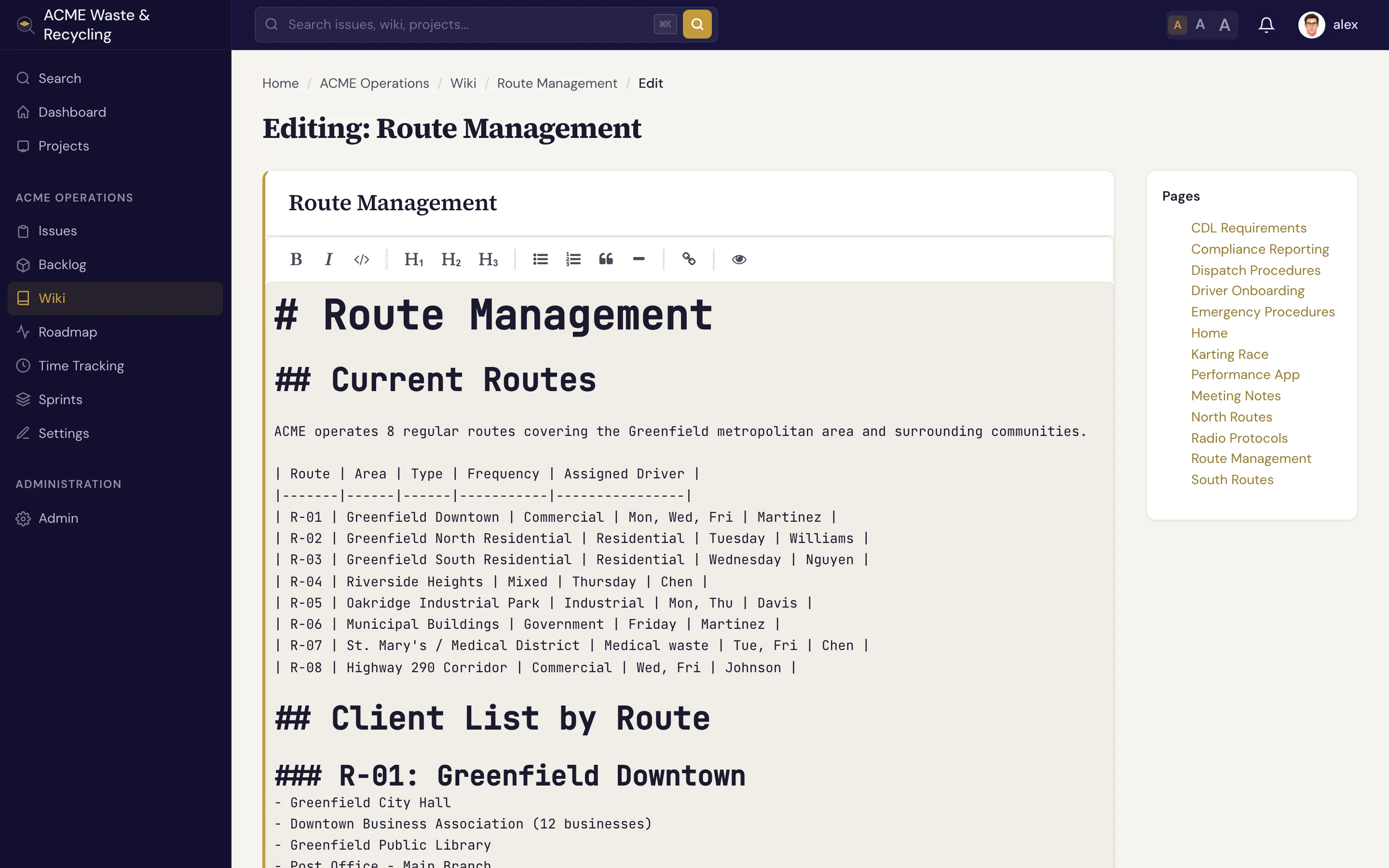
Open any editable page and click Edit. You get the Markdown source in an editor; change what you need and Save.
Protected pages are read-only
If a page is marked protected, the Edit action is unavailable until its protected state is changed. See Protected pages.
Every save is a new version
When you save, Specivo records a new version of the page along with who saved it and an optional edit comment. The comment is a short note about what changed ("fixed the staging URL", "added rollback steps") — it's worth writing one, because it's what makes the history readable later.
Nothing is overwritten in place: previous versions stay available, and you can compare or revert to them. See History & linking.
Edit a single section
You don't have to open the whole page to change one part of it. Each heading in a page can be edited on its own — useful for long pages where you only want to touch one section and leave the rest untouched. Section edits save as a new version just like a full-page edit does.
Attach files
Wiki pages support attachments — diagrams, screenshots, PDFs, exported data. Add a file to a page and it keeps its original filename, size, and type, plus an optional description. Those descriptions are searchable, so a well-described attachment turns up in search later.
The maximum upload size is set by whoever runs your Specivo server; there's no built-in restriction on file type. Attachments also work on issues and comments — see Attachments.
What's next
- History & linking — view past versions, revert, restore from trash, and
cross-link with
[[Page Name]]. - Markdown reference — the full set of formatting you can use.
- Tags — attach colored labels to wiki pages and filter by them across your projects.