Statuses & workflow
An issue's status says where it sits in its lifecycle. Specivo ships with a set of sensible defaults, and each status belongs to a category that drives the board columns and reports.
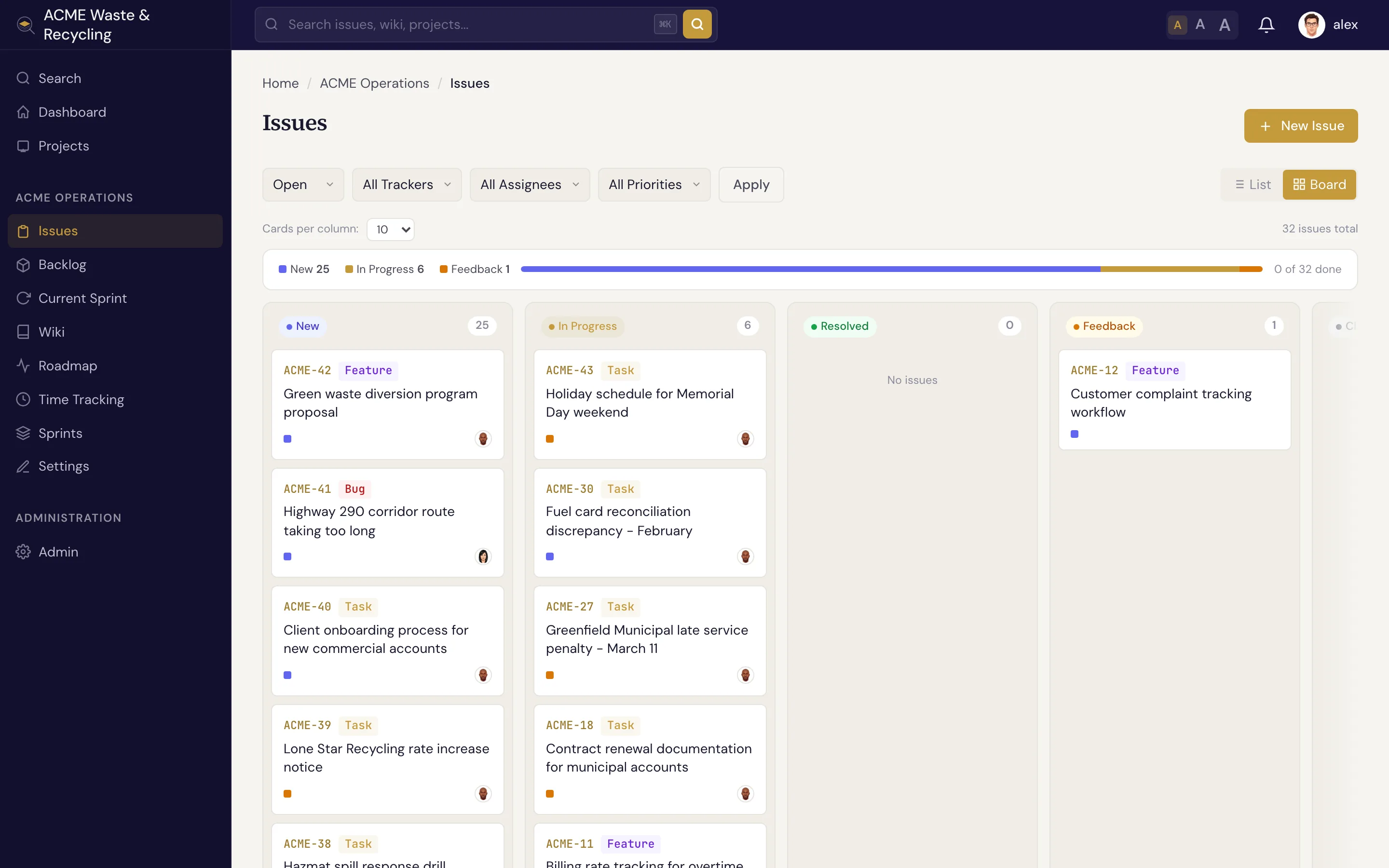
The default statuses
| Status | Category | Meaning |
|---|---|---|
| New | backlog | Reported but not started |
| In Progress | active | Someone is actively working on it |
| Resolved | done | Work is finished (sets % done to 100) |
| Feedback | active | Waiting on input or review before it can move on |
| Closed | closed | Done and verified (sets % done to 100) |
| Rejected | closed | Won't be done — duplicate, invalid, or out of scope |
The four categories — backlog, active, done, and closed — are what reports and boards group by, so the exact status names matter less than the category they fall into.
The typical flow
Most issues follow a simple path:
New → In Progress → Resolved
You pick up a new issue and set it to In Progress, do the work, then set it to Resolved. Use Feedback when an issue is parked waiting on someone, Closed once it's verified, and Rejected when it won't be done at all.
How status drives the board
The board view shows columns by status category, so an issue moves across the board as its status changes: from the backlog column, into the active column when you start, and into done/closed when you finish. See Finding issues for the board and list views, and Sprints for the sprint board.
Customizing the workflow
Admins control transitions
The statuses above are the shipped defaults. A project manager can customize the workflow — which status an issue may move to from each status, and which roles are allowed to make each transition. So in your project some moves may be restricted, or extra rules may apply, depending on your role.