AI usage
Specivo records what people's AI coding tools use, next to the time they log: the tool (Claude Code, Codex, Cursor and so on), the model, the tokens and the cost. Most usage arrives from a reporter that reads the tools' local logs (see Reporting AI usage). You can also log it by hand, review it per project and per issue, move it to the right place, and leave entries out of the totals.
Each entry is one bucket of usage: one tool session, one model, one UTC day.
Who can do what
Four role permissions control AI usage in a project:
| Permission | Allows |
|---|---|
| View AI usage | The project's AI usage list and an issue's AI usage tab. With the role's AI usage visibility set to All AI usage you see everyone's entries; with Own AI usage, only your own. |
| Log AI usage | Logging your own usage in the project, and moving your entries into it. |
| Edit/exclude any AI usage entries | Editing, excluding and deleting anyone's entries in the project. |
| Log AI usage on behalf of other members | Logging usage in the name of another active member of the project. |
Whatever your roles, you always see the usage logged in your own name, including who logged it, on My AI usage. You can always edit and exclude your own entries. Entries on issues you cannot see stay hidden, unless they are your own. Administrators can do everything. Buttons you can't use are hidden. See What a role can see for the visibility settings.
The project's AI usage
Open a project and choose AI usage in the project tabs or in the sidebar.
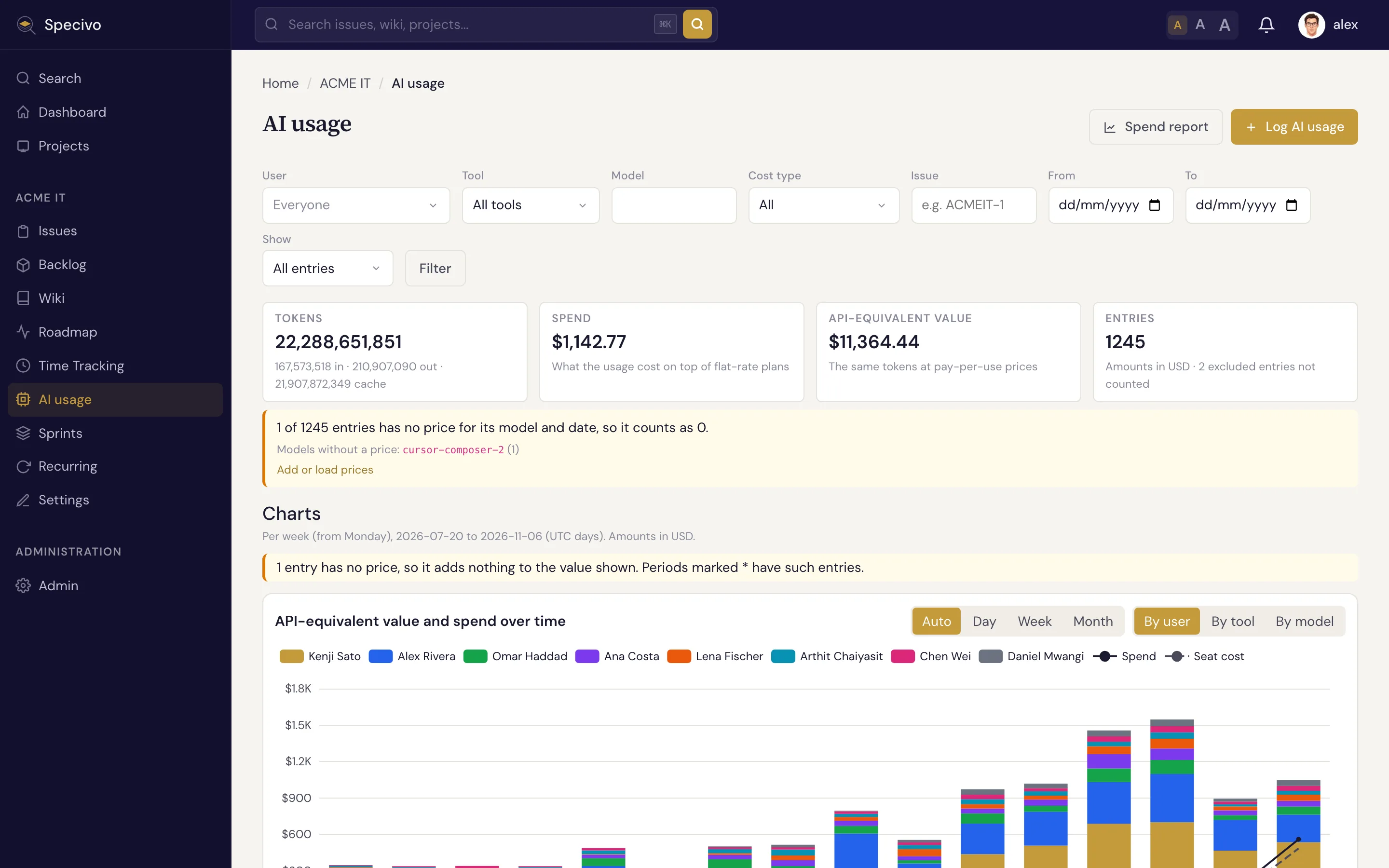
Filters narrow the list by person (only with All AI usage visibility), tool, model, cost type, issue key and date range. Show chooses between all entries, only the counted ones and only the excluded ones.
Above the list, the totals add up every entry that matches the filters, not only the page you see:
- Tokens: input, output and cache tokens together.
- Spend: what the usage cost on top of flat-rate plans. Usage covered by an AI subscription adds nothing here; pay-per-use API usage adds its price, or the cost the provider reported.
- API-equivalent value: what the same tokens would have cost at pay-per-use API prices. Comparing it with what you pay for plans tells you whether the plans pay off.
- Entries: how many entries are counted, and how many excluded entries are left out.
Amounts are shown in the project's reporting currency. Amounts in other currencies are converted with the exchange rate of the day of the usage. An amount with no usable rate is never dropped and never counted as zero: it is listed after the total as plus, not converted, in its own currency, with the reason (no exchange rate or rate too old).
Each row shows the day, the person, the tool and model, where the entry came from (logged by hand, REST API, MCP, a reporter or an import), the tokens (hover for the breakdown), the cost type, the spend and the API value, and the issue. When someone else logged an entry for the person, the row says logged by that account via key and the name of the API key it used, so a shared service account's reports are easy to tell apart.
Days are UTC days. A session that runs past midnight UTC is split into two entries.
Under the totals, Charts show the entries you may see with the list's filters (counted ones, or the excluded ones when Show is set to excluded): the value and spend over time by user, by tool or by model, tokens over time, the value by user, model and tool, and, where you may see seat cost, subscription leverage per person. They work like the charts of the spend report, with the same rules on who sees seat cost. An issue or branch filter, or showing excluded entries, leaves seat cost out, since a subscription fee belongs to no issue or branch.
For totals per person, model, tool, issue or week, with subscription fees included, click Spend report: see AI spend reports.
On an issue
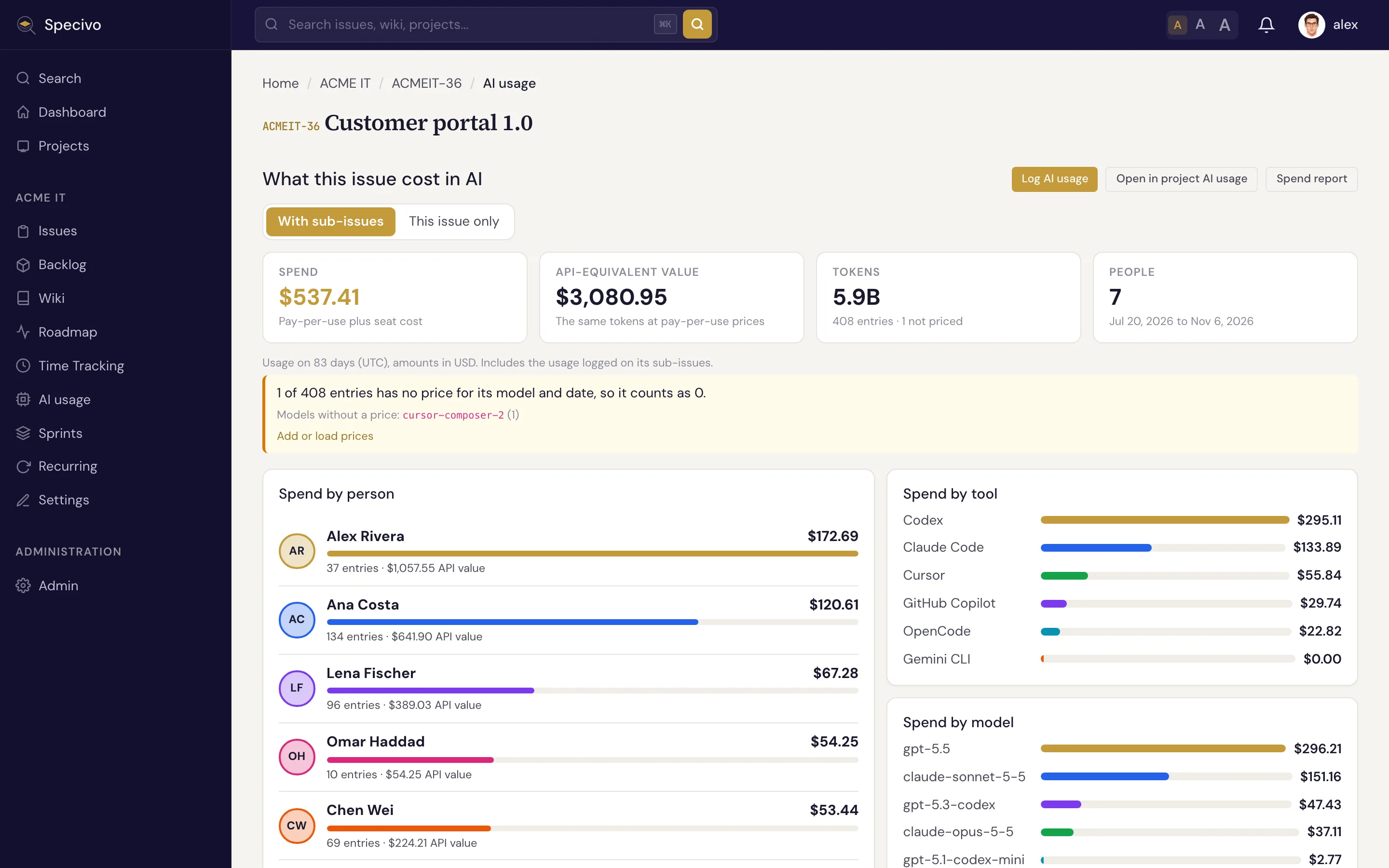
An issue's AI usage tab sits next to the Time tab and answers "what did this feature cost in AI?". It loads when you open it and shows:
- Headline numbers: the spend, the API-equivalent value, the tokens and entries, how many people used AI on the issue, and the first and last day with usage.
- Spend by person: one bar per person in their colour, with the tools they used; the eight largest are shown and the rest are counted. When nothing you can see has a spend (for example subscription usage while seat cost is hidden from you), the bars show the API-equivalent value.
- Spend by tool and Spend by model: the largest eight, and one Other bar for the rest.
- Spend over time when the usage spans four days or more, per day, week or month like the other AI usage charts. Switch the stack between people, tools and models.
- Sessions: the entries, newest first, 10, 25 or 50 to a page, with the date, person, tool, model, tokens, cost type, spend and branch.
The totals always count every entry of the issue, whatever page of sessions you are on.
When the issue has sub-issues, the numbers include their usage (and the usage on their own sub-issues). Choose This issue only to leave it out; With sub-issues brings it back, and the sessions then show which issue each entry was logged on.
The tab follows the rules of the spend report: you see the entries your role's AI usage visibility allows, and the spend includes seat cost only if you are an administrator or can see every entry of the project in the period. Otherwise the tab says that seat cost is left out. Excluded entries are not counted; a link lists them in the project.
Open in project AI usage opens the project's list filtered by the issue, and Spend report
opens the project's spend report at this issue. Log AI usage logs usage for the issue by hand.
Each view of the tab also has its own address (/issue/KEY/ai-usage/), so the sub-issue switch
and the pages work without JavaScript and can be shared.
If the tab says no usage is logged yet, usage has not been attributed to the issue. Usage counts
for an issue when the reporter names it (for example with the SPECIVO_ISSUE environment
variable), when the agent marks the issue it works on through Specivo's MCP server, when the
session's commits are linked to it, or when the branch name holds its key. See
Which issue the usage counts for.
You can also move entries to the issue from My AI usage.
The tab is shown to people who may view or log AI usage in the project.
My AI usage
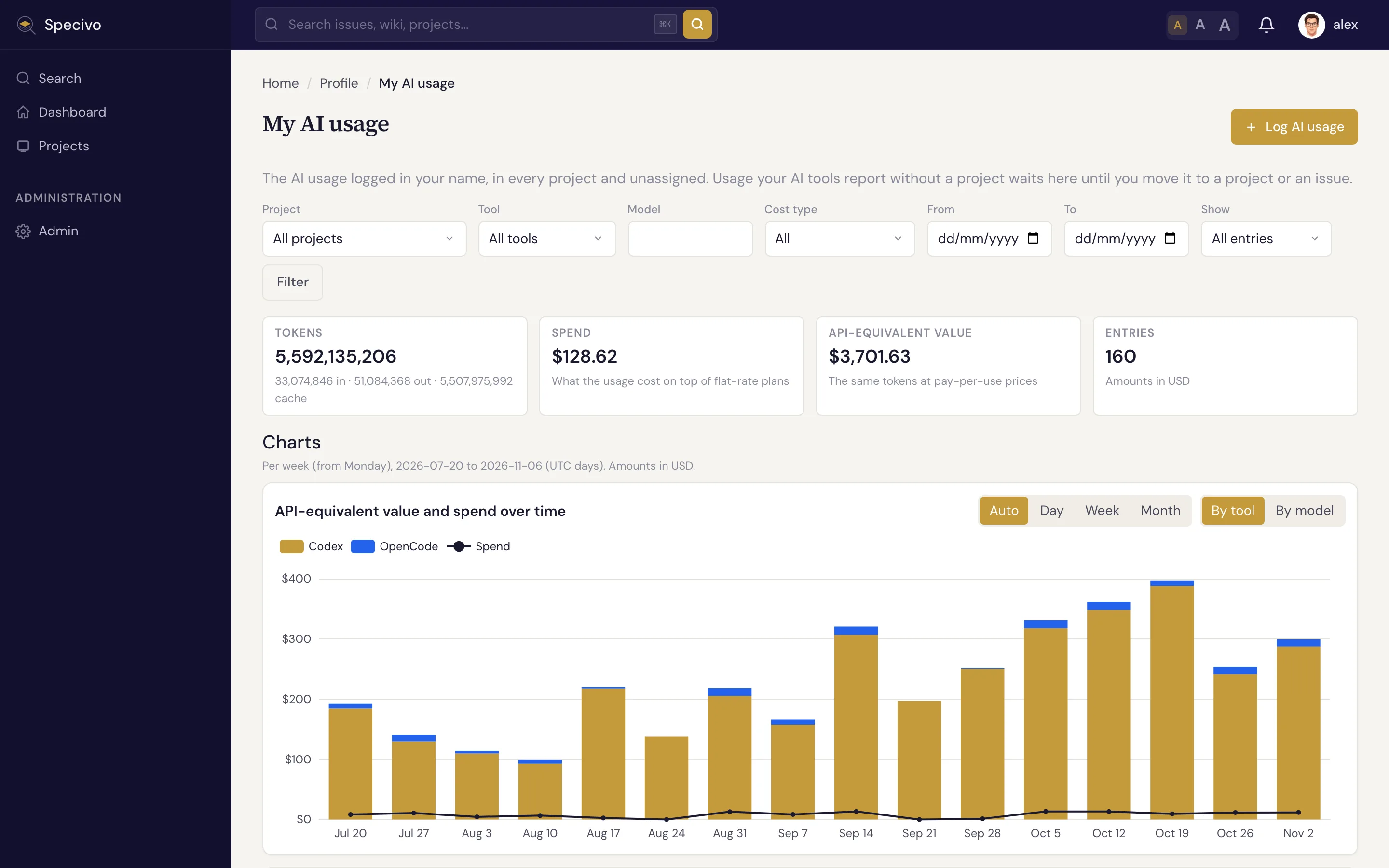
Open My AI usage from your user menu. It lists the usage logged in your name in every project, and the usage that belongs to no project yet. A reporter sends usage without a project when it cannot tell which project or issue the work was for; filter by Project → Unassigned to find it.
To move entries:
- Tick the entries (the box in the header ticks every entry on the page).
- Under Move the selected entries to, choose a project, or type an issue key: an issue alone also sets its project. Choose No project (unassigned) to take entries out of a project.
- Click Move.
You can move entries only to projects where you may log AI usage. A move is all or nothing: if one entry cannot be moved, none is.
Charts
Under the totals, Charts show the entries the filters select (counted ones, or the excluded ones when Show is set to excluded):
- API-equivalent value over time, split by tool or by model, with your spend as a line when any entry has spend.
- Tokens over time: input and output in one chart, cache reads and writes in another, since cache tokens are usually far more numerous.
- The value by project and by model: the eight largest, the rest as Other.
- Subscription leverage, when no project, tool or model filter is set: for each of your plans, the API-equivalent value of the usage it covered divided by its fee for the same days.
The charts run from your first to your last entry in the filtered range, one point per day, week, month, quarter or year depending on how long that is. Day, Week and Month pick a size yourself; a size that would draw more than 120 points falls back to Auto. Entries without a price count as nothing, so a period that has some is marked with an asterisk, and its tooltip says how many.
Log usage by hand
Click Log AI usage on the project's AI usage list, on an issue's AI usage tab, or on My AI usage. On My AI usage you choose the project, or leave it unassigned.
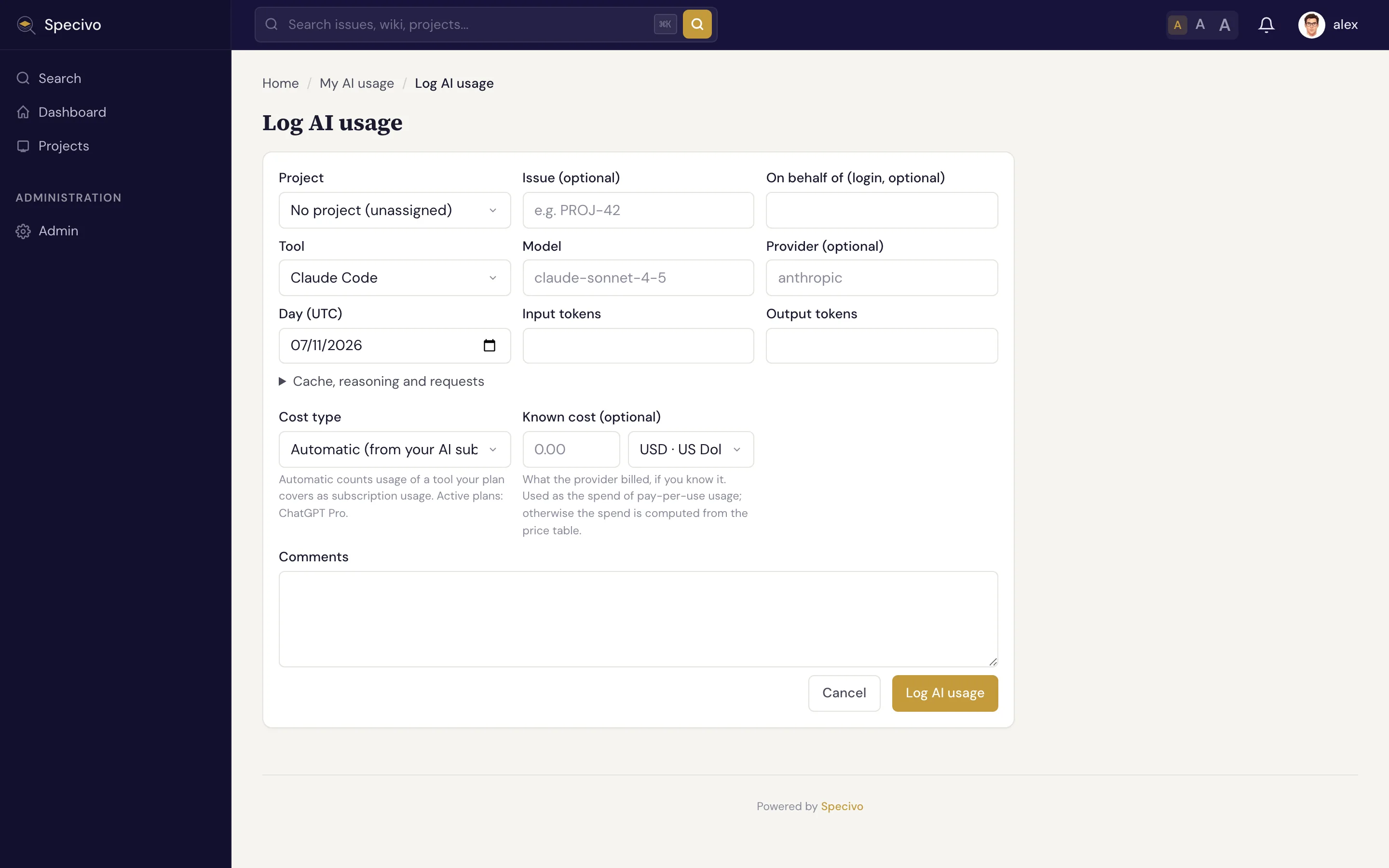
| Field | What to enter |
|---|---|
| Issue | Optional. The key of the issue the work was for, such as APP-12. |
| On behalf of | Only with Log AI usage on behalf of other members: the login of the member whose usage it is. Leave empty for your own. |
| Tool | The AI tool you used. |
| Model | The model name. Suggestions come from the price table; another name is accepted too, but it is priced only when a price exists for it. |
| Provider | Optional. Leave it empty to use the tool's provider. |
| Day (UTC) | The day of the usage. |
| Input tokens, Output tokens | The token counts. Cache, reasoning and request counts are under Cache, reasoning and requests. |
| Cost type | Automatic counts usage of a tool one of your AI subscriptions covers as Subscription, and anything else as Unknown. Or choose Subscription, API (pay per use), Local model or Free. |
| Known cost | Optional. What the provider billed, in any active currency. It becomes the spend of pay-per-use usage; without it the spend is computed from the price table. |
| Comments | Optional. |
Specivo computes the costs when you save, with the prices valid on that day. Later price changes do not change saved entries by themselves.
Edit, exclude or delete an entry
Edit opens the same form. On entries logged by hand or through the API or MCP, everything can change. On entries sent by a reporter or an import, the tool, model, tokens and cost stay as reported and are shown read-only: you can change only the project, the issue and the comments.
Exclude leaves an entry out of the totals and reports without deleting it, for example usage that was a test, or that someone else already counts. The entry stays in the list, marked Excluded, and Include counts it again. A reporter sending the same bucket again keeps the exclusion.
Delete removes an entry for good. Entries logged by hand or through the API or MCP can be deleted by whoever may edit them; reported and imported entries only by administrators, since the reporter would send them again. Exclude them instead.
Logging for someone else, editing someone else's entry, excluding, including and deleting are written to the audit log.