Repository integrations
A repository integration connects one repository on GitHub, GitLab, Gitea or Forgejo to a Specivo project. The forge sends a webhook for every push and every pull or merge request, and Specivo links what it finds to your issues:
- A commit that mentions
ACME-12in its message, or is pushed to a branch named after it, is linked to issue ACME-12. The issue gets a note from Git and the commit appears in the issue's Development tab. - A pull request (GitLab: merge request) that mentions an issue in its title, its description or its source branch is linked the same way, with its state: open, draft, merged or closed.
- Optionally, commit messages can act on issues (
Fixes ACME-12moves the issue,ACME-12 @2hlogs time) and a merged pull request can move the issues it fixes. Both are off until you turn them on.
Specivo never writes to the repository. It only reads what the forge sends it.
Connect a repository
You need the Manage project settings permission in the project. Open the project's Settings → Repositories tab and choose Connect a repository.
| Field | What to enter |
|---|---|
| Repository URL | The repository's address. Paste its web page or its clone address; Provider and Repository are filled in from it (see Filling the form from the URL). Stored as the web address, http:// or https://, and used for the links to branches. |
| Provider | GitHub, GitLab, Gitea or Forgejo. It can be changed later. |
| Repository | The full name as the forge shows it, owner/repository (GitLab: the full path, groups included, such as example-org/web/website). Deliveries that name another repository are ignored. Compared without regard to case. |
| Issues commits may link to | This project, or This project and its subprojects. Keys of other projects in commit messages are ignored. |
A field that is missing or wrong is outlined in red with the reason under it, and Connect repository moves you to the first one instead of sending the form. Provider, Repository and URL must agree:
- On github.com, gitlab.com and codeberg.org the provider must be the host's (GitHub, GitLab, and Forgejo or Gitea for Codeberg), and Repository must be the repository the URL names.
- On any other host (your own forge), Repository must appear in the URL's path. A forge served under
a sub-path, such as
https://example.org/git/owner/repository, is fine.
The other options, under Changes to issues, are described in Commit commands, Merge automation and Pull requests from forks. Environment types is described in Environment types.
Filling the form from the URL
Type or paste the address into Repository URL and Specivo fills in the rest, with a note such as Detected GitHub repository example-org/widgets. Undo in the note puts back what the fields held before.
- github.com, gitlab.com and codeberg.org (with or without
www.) set the provider: GitHub, GitLab and Forgejo. Repository isowner/repository, or for GitLab the whole path with its groups. - Links to a page inside the repository work too:
/tree/main,/blob/…,/pulls,/issues, and on GitLab anything after/-/, such as/-/merge_requestsor/-/tree/main. A trailing/and a.gitending are dropped. - Clone addresses work:
[email protected]:owner/repository.gitandssh://[email protected]/group/repository.gitbecome the repository'shttps://web address. - For any other host, the provider you chose stays: Specivo cannot tell a Gitea server from a
GitLab one by its name. Repository is taken from the path: everything before
/-/with GitLab, the first two parts with the others. - A field you changed yourself is left alone. Pasting another address later changes only the fields that still hold what was filled in.
On github.com, gitlab.com and codeberg.org the URL is stored as the repository's main page, so a link to a sub-page is cut back. An address on another host is stored as you entered it, except that a clone address becomes the web address.
After you save, Specivo shows the Webhook URL and the Secret, with the setup steps for the provider you picked. Copy the secret now: it is not shown again. The secret is 64 random hexadecimal characters, generated by Specivo; you cannot choose your own.

Each connected repository has these actions:
- Delivery log: what the forge sent and what Specivo did with it (see Troubleshooting).
- New secret: generates a new secret and shows it once. The old secret stops working at once, so paste the new one into the forge straight away.
- Disable / Enable: a disabled integration answers every delivery with 404 and changes nothing.
- Edit (pencil) and Delete (bin), which asks you to confirm with Disconnect. Disconnecting deletes the integration, its delivery log and its stored commits and pull requests; the notes already written on issues stay.
The row also shows the Last delivery time ("Never received" until the forge has sent something), and whether subprojects, commit commands or merge automation are on.
Change the provider
When a repository moves to another forge, edit its integration instead of connecting it again: paste the new address into Repository URL (or pick the Provider yourself) and save. Editing fills the form from the URL the same way as connecting does.
The webhook URL names the provider, so a new provider means a new integration address:
- The old webhook URL stops working at once; the old forge's deliveries get 404.
- A new secret is generated. Specivo shows the new webhook URL and secret once, with the setup steps for the new forge. Set the webhook up again on the new forge; the old webhook can be deleted there.
- Commits and pull requests already linked stay on their issues, as history. A pull request keeps the forge it came from, so a request with the same number on the new forge is a separate one.
- The delivery log keeps the provider each delivery came from: older entries still say the old forge. A delivery that was still waiting to be processed when the provider changed is ignored.
- The change is written to the security audit log as
repository_provider_changed, with the old and new provider and repository.
It needs the same permission as any other edit: Manage project settings.
The same repository can be connected to several projects. Each connection has its own webhook URL and secret, so the forge needs one webhook per project.
The REST API offers the same under /api/v1/projects/{key}/repositories/ (list, create, read,
update, delete, rotate-secret/ and deliveries/), with the same permission. The secret is in the
response to create, to rotate-secret/ and to an update that changes provider, and only there. A
mismatch between provider, repository and URL is answered 422 with field naming the field at
fault (provider, repo_full_name or repo_url).
Set up the webhook on the forge
The webhook URL looks like this:
It is built from APP_URL (and the STEALTH_PREFIX, if your instance uses one), the provider and
a random id. Your administrator must have set APP_URL
to the address the forge can reach.
Send JSON. Specivo uses these events:
| Forge | Events |
|---|---|
| GitHub | Pushes (branches and tags), Pull requests, Pull request reviews, Check runs, Check suites, Workflow runs, Workflow jobs, Deployments, Deployment statuses, Branch or tag creation, Releases |
| GitLab | Push events, Tag push events, Merge request events (approvals included), Pipeline events, Job events, Deployment events, Releases events |
| Gitea, Forgejo | Push, Create, Release, Pull request, Pull request reviewed (approved, rejected, comment), Workflow run and Workflow job (Actions) where the server offers them |
Sending everything is safe. An event Specivo does not use is answered 200 and listed in the
delivery log as ignored, without its payload, and does not count against the integration's rate
limit (it still has to carry the right signature or token). Confidential items, such as GitLab's
confidential issues and confidential comments, are never stored, whatever the event.
GitHub
- In the repository on GitHub, open Settings → Webhooks → Add webhook.
- Paste the webhook URL into Payload URL and set Content type to
application/json. - Paste the secret into Secret.
- Choose Send me everything, or Let me select individual events and tick the events in the table above, and save.
GitHub sends a ping at once; it appears in the delivery log as Processed: Ping received.
GitHub signs every delivery with the secret (X-Hub-Signature-256).
GitLab
- In the project on GitLab, open Settings → Webhooks → Add new webhook.
- Paste the webhook URL into URL and the secret into Secret token.
- Under Trigger, select every event, or at least those in the table above.
- Save, then use Test → Push events to send a first delivery.
GitLab does not sign deliveries: it sends the secret itself in X-Gitlab-Token, so use HTTPS
between GitLab and Specivo. Old GitLab versions send no delivery id; Specivo then uses a hash of the
body, so two identical bodies count as the same delivery.
Gitea and Forgejo
- In the repository, open Settings → Webhooks → Add webhook and pick the Gitea or Forgejo webhook type, matching the server.
- Paste the webhook URL into Target URL. Keep the HTTP method POST and set the POST
content type to
application/json. - Paste the secret into Secret.
- Under Trigger on, choose All events, or Custom events with the events in the table above, then add the webhook. Test delivery sends a push.
Gitea and Forgejo send no deployment events. Their Actions events (workflow runs and jobs) are read like GitHub's; servers too old to offer them simply send none.
Gitea and Forgejo sign the body with the secret and send the signature in X-Gitea-Signature
(Forgejo also in X-Forgejo-Signature). Pick the provider in Specivo that matches the server:
Forgejo for a Forgejo server (Codeberg, for example), Gitea for a Gitea server.
To make the issue keys in the forge link back to Specivo as well, see Issue links from Gitea and Forgejo.
How commits and pull requests name an issue
Only the project keys in the integration's scope count. HTTP-200 in a message is not a reference
unless your project's key is HTTP, and an issue in another project is never touched, whatever the
message says.
In a commit message
- A key and number, such as
ACME-12, with an optional#(#ACME-12). The key must be in upper case, as projects store it. It must stand on its own:xACME-12,docs/ACME-12orexample.com/ACME-12are not references. - An optional keyword just before it says what the commit claims:
| Keyword | Means |
|---|---|
fixes, fixed, fix, closes, closed, close, resolves, resolved, resolve |
The commit fixes the issue. |
refs, references, ref, see, or none |
The commit is about the issue. |
ignore |
The commit is not linked to the issue at all, not even through its branch name. |
Keywords are not case-sensitive and may be followed by a colon (Fixes: ACME-12). A list shares
the keyword before it: Fixes ACME-1, ACME-2 and ACME-3 fixes all three.
- Ignore ACME-12 wins over every other mention of ACME-12 in the same message: write it when a
message has to name an issue it is not about (Revert the change for ACME-12, ignore ACME-12).
- At most 20 references per commit are linked, branch name first, then the message; the rest are
ignored. A pull request has the same cap, counting its title, then its description, then its
branch. Messages and pull request descriptions are read up to 10,000 characters.
In a branch name
A key and number anywhere in the branch name, as its own part: ACME-12, feat/ACME-12-login-form,
ACME-12/login-form. Lower case works too (feat/acme-12-login-form), because branch names are
often lower-cased. Every commit pushed to that branch is linked to the issue. A branch name
refers to the issue; it never fixes it and never carries a command.
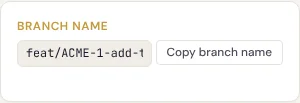
The Copy branch name button on each issue gives you a name in this form.
In a pull or merge request
The title, the description and the source branch are read the same way. The link is closing
when the title or description uses a fixing keyword (Fixes ACME-12); the Development tab marks
it fixes, and only closing links take part in merge automation. Until the
request is merged, a link follows the current text: remove the keyword and it is no longer closing.
Ignore ACME-12 in the title or description means the request is not linked to ACME-12, whatever
else names it (its branch included).
Old keys after a rename or a move
A reference under a project's old key, from before an administrator renamed it, still names the
issue (Fixes OLD-12 after OLD became ACME). So does the old key and number of an issue that
was moved from one project in the scope to another.
What happens when a commit links to an issue
The first time a commit is linked to an issue:
- The issue gets one note from Git, the built-in service account that writes repository
activity (its avatar is a branch icon): "Commit
abc1234onfeat/ACME-12-login-formby Alex Example: Add the login form", with a link to the commit. A pull request gets "Pull request #14 byalex-example: Add the login form" (GitLab: "Merge request !14"). - The commit SHA is added to the issue's
commitsmetadata, the branch (when the branch name references the issue, even if the commit message names it too, unless it is the default branch; or a pull request's source branch) tobranches, and a pull request's URL topull_requests. Values already there are not added again. These are the fields of the Software Development preset.
A commit that is pushed again, to another branch or in another delivery, adds nothing for the issues it is already linked to (pushed to a branch named after another issue, it is linked to that one too). A delivery the forge sends twice (a retry, or Redeliver) is recognised by its delivery id and changes nothing the second time. The note's author is always Git, never the issue's author; the commit author's name is in the text.
The commit author is matched to a Specivo account only through a verified email address. That match is stored with the commit and used by commit commands; it is not shown anywhere, and commit author emails are never displayed.
The Development tab
When an issue has linked pull requests or commits, its page has a Development tab next to Activity (Activity · Development · Time · Relations · Attachments). The tab's count is the number of pull requests plus the number of commits.
At the top, a summary sums up the work:
- the number of pull requests, reviews, builds (CI runs), deployments and commits, each kind with one combined status where it has one: pull requests Open, Merged or Closed; reviews Changes requested, Approved or Commented; builds Failing, Running, Passing or Neutral (see Builds, deployments and releases for how they are combined);
- the latest successful deployment to each environment type: "Deployed to production 2 hrs ago". Hover the time to see the date and time; the environment's own name, when it is not just the type, links to it on the forge;
- Released in: the releases and tags the issue is in. When the project has a version of the same name, the version links to its page, with the tag beside it;
- the repositories, linked to the forge.
A kind with nothing in it is left out of the summary.
Below it, the timeline lists everything, newest first: commits (short SHA, first line, author, branch and repository), pull requests (state, number, title, fixes for a closing link, author and source branch), reviews, builds, deployments and releases. Numbers, SHAs, names and branches link to the forge when the repository URL is a web address. When there is more than one kind, buttons above the timeline filter it: pick Builds to see only builds, add Deployments to see both, and All to see everything again. The timeline shows 20 entries at a time; Show N more loads the next ones.
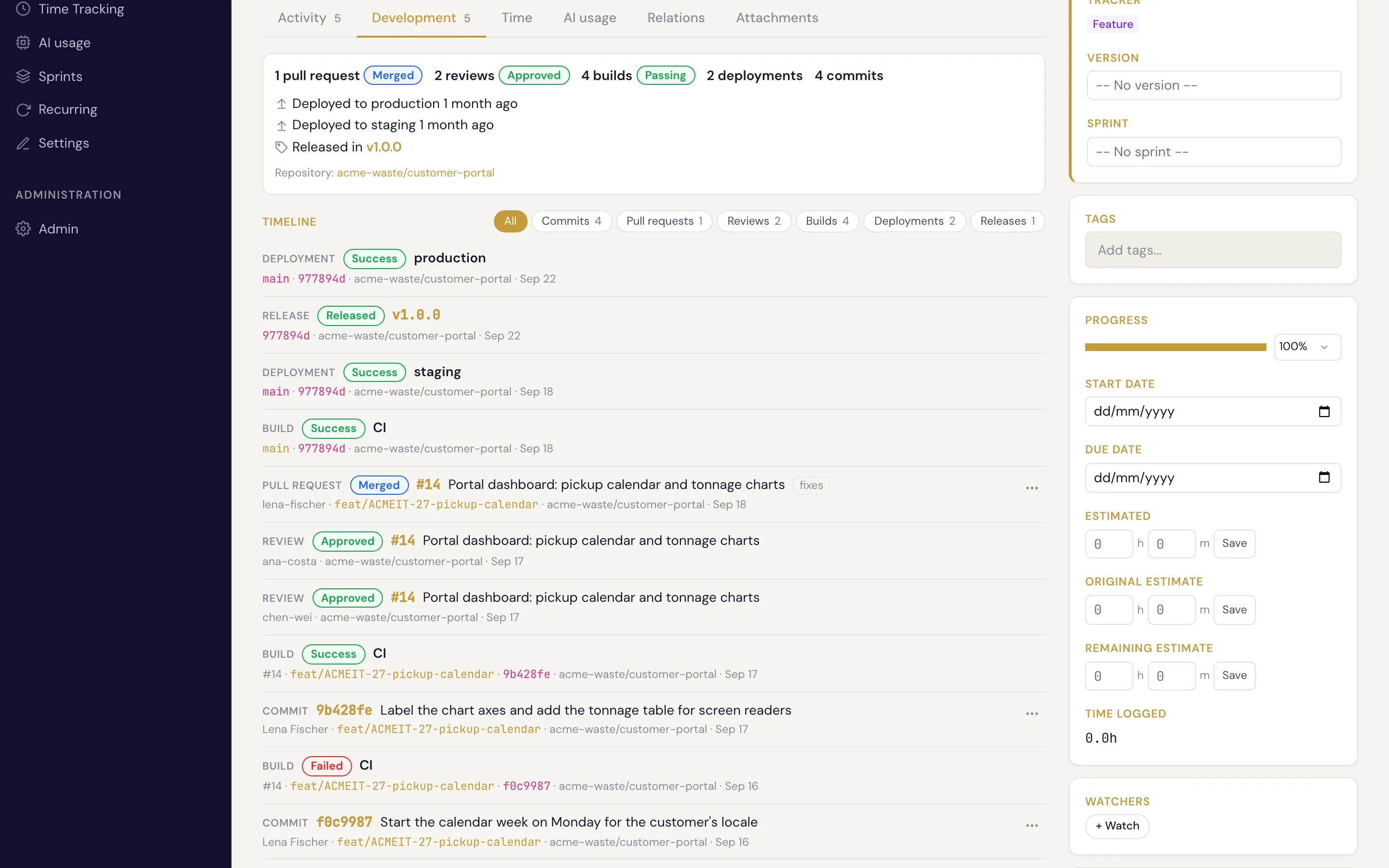
Activity stays the tab that opens first. To link straight to the Development tab, add
#development to the issue's address (/issue/ACME-12/#development); the other tabs work the same
way (#time, #relations, #attachments). On a narrow screen the tab row scrolls sideways.
The tab is shown to signed-in people who can see the issue, and is not there when no pull request or commit is linked. Visitors without an account never see it.
Reading development activity through the API and MCP
GET /api/v1/issues/{key}/development/ returns everything about an issue's development:
commits(the newest 50, withcommit_countfor all),pull_requests(up to 100) andbranches, as before; commits and pull requests now carry anid, used to detach or move them;reviews,ci_runs,deployments(each with itsenvironment_type) andreleases, described in Builds, deployments and releases;summary: counts per kind and one combined status per kind (see below), the latest deployment per environment type, the releases the issue is in, and the repositories with their links;timeline: all of it in one list, newest first. Filter it withkinds(repeat the parameter:?kinds=ci&kinds=deployment; kinds arecommit,pull_request,review,ci,deployment,release) and page it withoffsetandlimit(default 50, at most 200), like other lists: the answer hastotal_count,offset,limitanditems.
AI agents use the MCP tool specivo_issue_development(issue_ref, kinds=[...], limit=50, offset=0),
which returns the same document as JSON. specivo_show_issue keeps listing the newest 10 commits and
the pull requests, and adds one Development: line that sums up reviews, CI, deployments and
releases.
Builds, deployments and releases
Besides commits and pull requests, Specivo records what happens to them on the forge. Nothing is fetched from the forge: everything comes from the webhooks it sends.
CI runs
GitHub check runs, check suites, workflow runs and workflow jobs, GitLab pipelines and jobs, and Gitea and Forgejo Actions runs and jobs are recorded with their status (pending, running, success, failure, cancelled, skipped, neutral). A run belongs to an issue when, in the same repository:
- it ran on a linked commit, or on the merge commit of a linked pull request;
- it ran for a linked pull request (GitHub and GitLab name it); or
- it ran on a linked pull request's source branch, or on a branch named after the issue (a branch whose commits are linked by their branch name), other than the default branch.
This is worked out when the activity is read, so a commit you detach or move takes its runs with it. The summary's CI status is failing when the latest run of any check or workflow failed, else running while one is pending or running, else passing. A re-run that passes makes it passing again.
Deployments
GitHub deployments and deployment statuses and GitLab deployment events are recorded with their environment and status. A deployment belongs to an issue when it deployed a linked commit or a linked pull request's merge commit, or a branch as above. Only an exact commit counts: Specivo does not know which earlier commits a deployed commit contains. The summary shows the latest successful deployment per environment type: "Deployed to production 2 hrs ago".
Environment types
Each environment is given a type from its name:
| Type | Names (any part of the name) |
|---|---|
| production | production, prod, prd, live |
| staging | staging, stage, stg, preprod, pre-prod, preproduction |
| testing | test, testing, qa, uat, sit |
| development | dev, develop, development, review (review/feat-x), local, sandbox, preview |
A name that matches none is left unclassified (environment_type is null). To override the
guess, open the repository in Settings → Repositories, choose Edit, and list the
environments under Environment types: Add an environment, enter its name (or a prefix
ending in *, such as review/*) and choose its type. The form says on the row what is wrong (a
missing name or type, a name listed twice) and saves nothing until it is fixed. Remove a row to go
back to the guess for that environment.
Through the API, set environment_types in the repository's settings:
PATCH /api/v1/projects/ACME/repositories/{id}/
{"settings": {"environment_types": {"github-pages": "production", "qa*": "staging"}}}
Names match without regard to case; a name ending in * matches every environment that starts
with the rest. An exact name wins over a pattern, and a longer pattern over a shorter one. At most
100 entries. The override applies to deployments already recorded, too. Send the whole settings
object: the other settings take their defaults when left out.
Reviews
GitHub pull request reviews, Gitea and Forgejo reviews, and GitLab merge request approvals (and reviewer states, where GitLab sends them) give each reviewer's latest verdict: approved, changes requested, commented, or dismissed. A plain comment does not withdraw an approval or a change request, as on the forges; a withdrawn GitLab approval removes it. Reviews are recorded for pull requests that are linked to an issue. The summary says changes requested if any reviewer asks for changes, else approved, else commented.
Tags and releases: "Released in"
Tags (pushed tags, GitHub and Gitea/Forgejo tag creation, GitLab tag pushes) and releases are recorded per repository. A tag records the issues it contains by these rules:
- The tag points at a linked commit, or at a linked pull request's merge commit.
- The push that created the tag listed a linked commit.
- The tag is on the default branch: it points at a commit Specivo saw reach the default branch (a linked commit pushed there, or the merge commit of a pull request merged into it). Then every issue whose linked commit was pushed to the default branch, or whose pull request was merged into it, no later than that commit is released in this tag, unless it is already in an earlier tag of the repository. This assumes the default branch only moves forward (no force push).
A tag on another branch only gets rules 1 and 2, so Specivo never claims a release it cannot show.
When the issue's project has a version with the tag's name (v1.2 also matches 1.2) or the
release's name, the release names that version; versions are never created, and the issue's target
version is not changed. A deleted tag is removed with its links; a deleted release leaves the tag.
Events in any order
Forges do not promise the order of their events. Each run, deployment, review and tag keeps its latest state, and an older event never overwrites a newer one: CI runs compare the attempt (a re-run is newer), then the forge's time, then how far along they are, so a late "running" never undoes a finished run; deployments compare the forge's time, and remember when they first succeeded even after a newer deployment makes them inactive; reviews keep each reviewer's newest.
Limits
Per repository, Specivo keeps the newest 5,000 CI runs, 2,000 deployments and 1,000 tags; older ones are deleted as new ones arrive. An issue lists its newest 200 CI runs and deployments (the counts include all), keeps its newest 20 releases, and a tag marks at most 500 issues by rule 3. A pull request keeps at most 50 reviewers.
Correcting links: detach and move
A commit or pull request linked to the wrong issue can be detached, or moved to the right one. In the Development tab, each commit and pull request in the timeline has a ⋯ menu:
- Detach from this issue asks you to confirm, then removes the link.
- Move to another issue… asks for the issue: type its key, or part of its subject and pick it from the suggestions, then choose Move. When the move is refused (no permission on the target, or a target outside the repository's scope) the reason is shown under the field and nothing changes.
The tab reloads after each change, with its count. People who cannot edit the issue do not see the
menu. The same is available through the API, with the id from
GET /api/v1/issues/{key}/development/:
DELETE /api/v1/issues/ACME-12/development/commits/{id}/
DELETE /api/v1/issues/ACME-12/development/pull-requests/{id}/
POST   /api/v1/issues/ACME-12/development/commits/{id}/move/        {"target_issue_ref": "ACME-14"}
POST   /api/v1/issues/ACME-12/development/pull-requests/{id}/move/  {"target_issue_ref": "ACME-14"}
- You need Edit issues on the issue, and for a move on the target issue too. The target must be in a project the repository may link to (its scope).
- A detached commit or pull request is never linked to that issue again, even when the forge redelivers the push or the request is edited. Moving it back to the issue later undoes that.
- Its SHA or URL leaves the issue's
commitsorpull_requestsmetadata, and a move adds it to the target's. Builds and deployments follow the commit. A moved pull request is never closing, so merge automation does not act on the target. - Each detach or move is recorded in the audit log
(
development_link_detached,development_link_moved).
Copy branch name
For signed-in people, each issue page has a Branch name card with a ready-made name and a Copy branch name button. Create your branch with that name and its commits link to the issue without anyone typing the key.
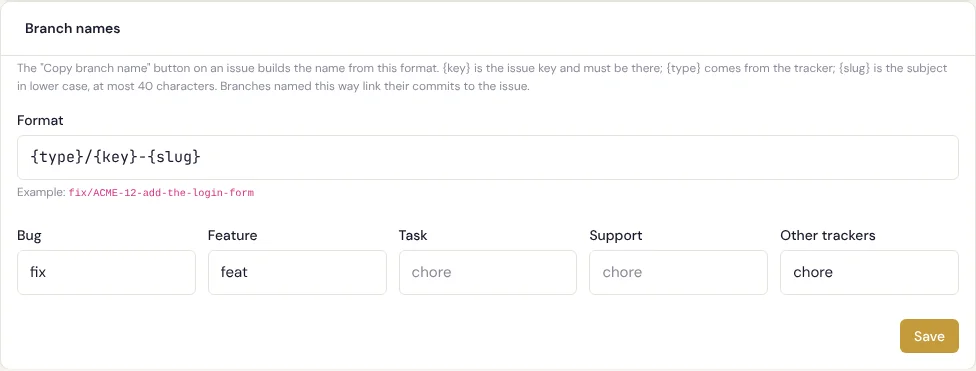
The default format is {type}/{key}-{slug}, for example feat/ACME-12-add-the-login-form:
| Placeholder | Becomes |
|---|---|
{type} |
A word from the issue's tracker: Bug → fix, Feature → feat, any other tracker → chore. |
{key} |
The issue key, ACME-12. Required in every format. |
{slug} |
The subject in lower case, accents removed, every run of other characters turned into -, at most 40 characters. |
A subject with no Latin letters or digits (in Thai, for example) gives an empty slug, and the
separators around it are dropped: fix/ACME-12. Every generated name is a valid git branch name.
A project manager can change the format and the tracker words in Settings → Repositories →
Branch names. A format is at most 100 characters; besides {type}, {key} and {slug} (no other
placeholder) it may use letters, digits, ., _, - and /, but not .. or //, and it may not
start or end with /. It must contain {key}, and {key} must be set apart by ., _, - or
/ (or stand at the start or end), so the issue key can always be read back from the branch name.
Tracker words may use letters, digits, ., _ and -, up to 30 characters; in the branch name
they are written in lower case, with . and _ turned into -.
Commit commands
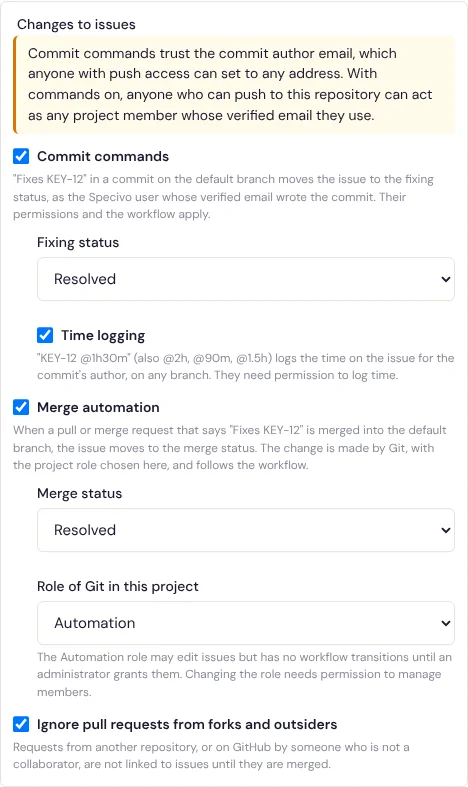
With Commit commands on, a commit message can change the issues it names:
Fixes ACME-12(or any fixing keyword) moves the issue to the Fixing status you pick when the commit reaches the default branch. Pushed to a feature branch, the commit is linked at once and the issue waits; it moves when the same commit is pushed to the default branch, by a fast-forward or a merge commit. A squash or rebase merge makes a new commit, which moves the issue when its own message keeps the keyword. Without a fixing status, nothing moves.ACME-12 @2h, with Time logging on as well, logs the time on the issue, on any branch, when the commit is first linked. Write the time right after the reference, on the same line:@2h,@1h30m,@90mor@1.5h.Fixes ACME-12 @1h30mdoes both. Zero logs nothing; more than 24 hours is logged as 24; time is rounded to 0.01 hours.
Each command runs once per commit and issue: time when the commit is first linked, Fixes
the first time Specivo sees the commit on the default branch. Whatever the outcome, even a
refusal, the command is not tried again: a redelivered push, a replay after a force-push or the
same commit reaching the default branch again changes nothing. Specivo only sees the commits a
push delivery lists, and forges cap that list (GitLab lists at most 20 commits), so a commit
missing from the list of the push that brought it to the default branch does not move its issue.
If a pull request that says Fixes ACME-12 also has merge automation,
whichever runs first moves the issue and the other finds it already moved. A commit
detached from the issue never acts on it.
A command runs as the commit's author: the Specivo account whose verified email is the commit author email. That person's permissions and the workflow apply exactly as in the web interface:
- moving the issue needs Edit issues and a workflow transition
their roles allow; the note "Fixed in commit
abc1234." is added with the change; - logging time needs Log time. The entry is dated on the commit day in that person's timezone, with the default activity, and the commit's first line and short SHA as its comment (see Time tracking).
The default branch is the one the forge reports with each delivery (main until the first
delivery arrives).
Commit commands trust the commit author email
Git lets anyone set any author email on a commit, and forges do not check it. With commands on, anyone who can push to this repository can act as any Specivo user whose verified email they use: move issues that user may move, and log time in their name. Turn commands on only for repositories where everyone with push access is trusted that far.
What limits the damage:
- Only verified email addresses match, and only active accounts. Service accounts with a verified email match too; Specivo's own system accounts, such as Git, never do.
- A command can never do more than the matched person could do in the web interface.
- An administrator matched this way gets no administrator rights: the command runs with
the roles of their own membership in the issue's project only (in person or through a
group), and does nothing if they are not a member (
no_membershipin the delivery log). - A command that cannot run is skipped and the reason is written to the delivery log. The forge is told nothing.
Merge automation
With Merge automation on, merging a pull request moves the issues it fixes to the Merge status you pick. It acts when all of these hold:
- the request is merged into the repository's default branch;
- the link is closing: the title or description says
Fixes ACME-12(or another fixing keyword) at the moment of the merge. A keyword added by editing the text after the merge does not count; - the issue is in a project still in the integration's scope, and is not already closed or already in the merge status.
Each issue moves at most once per merge.
The Automation role
The change is made by Git, not by the person who wrote or merged the pull request: their identity comes from the forge and Specivo cannot verify it. Turning merge automation on makes Git a member of the project with the role chosen under Role of Git in this project. By default that is the Automation role Specivo creates for this, which may View issues, Edit issues and Add comments, and has no workflow transitions until an administrator grants them in Administration → Workflows.
So on an instance with workflow rules, merge automation does nothing until you grant the
Automation role the transition from the issue's current status to the merge status, for the
issue's tracker. Until then each merge leaves the status alone and adds one note to the issue, for
example "Pull request #14 merged into main by alex-example; could not move to Resolved:
transition not allowed for the Automation role." Once the transition is granted, the next event
the forge sends for that merged pull request (an edit or a label change, for example) moves the
issue, unless the request comes from a fork or an outsider and
such requests are ignored. (An instance with no workflow rules at all allows every transition.)
Rules for the role:
- Choosing a role other than Automation (or the one Git already holds) can give Git more rights, so it needs the Manage project members permission. The built-in Non member and Anonymous roles cannot be chosen.
- Git is never an administrator, so nothing is bypassed: the permission check and the workflow apply as for a person with that role.
- Git does not appear in assignee pickers or member counts.
- Turning merge automation off on the project's last integration that has it on, or disconnecting that integration, removes Git's membership. Each of these membership changes is written to the security audit log, with the person who changed the setting as the actor.
Pull requests from forks and outsiders
Ignore pull requests from forks and outsiders is on by default. A pull request event is then
ignored (external_pull_request in the delivery log) when the request comes from another
repository (a fork), or, on GitHub, from an author who is not the repository's owner, a member of
its organisation or a collaborator. A payload that does not show where the request comes from is
treated as external.
The merge itself is the exception: only someone with write access can merge, so a merged request from a fork is linked, and merge automation applies to it. Turn the option off to link requests from forks while they are still open, for example on a public repository where you want to see contributions early.
Who can see what
- The settings tab, the delivery log and the API need Manage project settings in the project.
- With This project and its subprojects, a subproject counts only while the person who last configured the integration (created it, edited it or generated its secret) may manage that subproject. An administrator's integration covers every subproject.
- References to issues outside the scope, private projects included, are not references: nothing is written, and neither the forge's response nor the delivery log says whether such an issue exists.
- An issue's development activity (commits, pull requests, reviews, builds, deployments, releases) is shown to whoever can see the issue, on the page, through the API and through MCP, and to nobody else. An API key limited to some projects reads only those projects' issues. Commit messages, pull request titles and build names are not indexed for search; the Git notes on an issue are found only by people who can see the issue.
Troubleshooting with the delivery log
Delivery log on a repository's row lists every delivery the forge sent, newest first: when it arrived, the provider and event, the status and the details. Hover over the time to see the forge's delivery id. Entries are kept for 30 days.
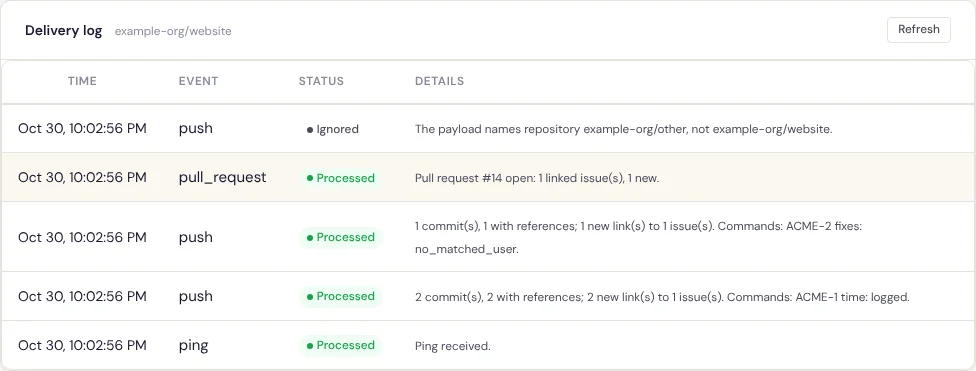
Statuses
| Status | Meaning |
|---|---|
| Accepted | Received and queued; processing is still to come. A delivery that is still here after five minutes is queued again automatically (the check runs every five minutes), for example after the task queue was down. |
| Processed | Handled. The details say what was linked and what each command did. |
| Ignored | Received but nothing to do; the details say why. |
| Failed | Could not be handled. A delivery that failed while being processed is accepted again when the forge redelivers it; one whose body was not a JSON object stays failed. |
A delivery id seen before is answered {"status": "duplicate"} and adds no new entry.
Details
| Details | Status | What to do |
|---|---|---|
| Ping received. | Processed | The webhook works (GitHub's first delivery). |
| N commit(s), M with references; X new link(s) to Y issue(s). | Processed | Normal. |
| N commit(s), no issue references. | Processed | No in-scope key in the messages or the branch name. Check the key's case and the scope. |
| No commits. | Processed | A push without commits, such as a new branch. |
| Not a branch push (ref). | Ignored | A push of something other than a branch or a tag. |
| Tag T: N issue(s) newly released in it. | Processed | A tag (or Release T). See Tags and releases. |
| Tag T deleted. | Processed | The tag and its links are removed. |
| Workflow run 'name' (status) recorded. | Processed | A CI run, job, check or pipeline. |
| Deployment to 'environment' (status) recorded. | Processed | A deployment or a new status of one. |
| … the event is older than the stored state; nothing changed. | Processed | Events arrived out of order; the newer state is kept. |
| N review(s), M recorded. | Processed | Reviewer verdicts. Review not recorded: the pull request references no issue when the request is not linked. |
| … N oldest run(s) removed (cap C). | Processed | The repository reached its limit. |
| Event name is not used by Specivo; the payload was not stored. | Ignored | Normal when the webhook sends everything. |
| Event name is about a confidential item; nothing was stored. | Ignored | A confidential issue or comment (GitLab). |
| The payload names repository X, not Y. | Ignored | The Repository field does not match the forge's full name, or the URL and secret are used by another repository. |
| The integration is disabled. | Ignored | It was disabled after the delivery arrived. |
| Received from old; the integration now uses new. | Ignored | The provider changed while the delivery waited to be processed. |
| The body is not a JSON object. | Failed | Set the content type on the forge to application/json. |
| Processing failed: error. | Failed | An error inside Specivo; error is its kind, and the server log has the details. Redeliver from the forge to try again. |
| Pull request #N (state) references no issue. | Processed | No in-scope key in the title, description or branch. |
| Pull request #N state: X linked issue(s), Y new. | Processed | Normal. |
| Pull request #N: the event is older than the stored state; nothing changed. | Processed | Events arrived out of order; the newer state is kept. A merged request never goes back to open. |
| Pull request #N (state) ignored: external_pull_request (from a fork or an outsider). | Ignored | See Pull requests from forks and outsiders. |
| The payload names no pull request. | Ignored | A malformed pull request event. |
GitLab merge requests read Merge request !N instead of Pull request #N.
Command and merge results
After Commands: (commit commands) or Merge automation:, each issue is listed as
ACME-12 fixes: moved, ACME-12 time: logged or ACME-12 merge: moved, or with the reason it did
nothing, such as ACME-12 fixes: no_matched_user (with commands off: ACME-12 commands:
commands_disabled):
| Reason | Meaning |
|---|---|
commands_disabled |
The message has a command but commit commands are off. |
time_logging_disabled |
The message has a time but time logging is off. |
not_default_branch |
The commit is not on the default branch yet; the issue moves when it gets there. |
no_fixing_status |
No fixing status is set. |
no_matched_user |
No active account has the commit author email as a verified address. |
no_membership |
The matched person is an administrator without a membership in the issue's project. |
issue_not_visible |
The matched person (or Git) may not see the issue. |
missing_permission:edit_issues |
The matched person (or Git's role) lacks Edit issues. |
missing_permission:log_time |
The matched person lacks Log time. |
transition_not_allowed |
The workflow does not allow the move for that person's (or Git's) roles. |
already_in_status |
The issue already has the target status. |
already_closed |
The issue is already in a closed status. |
status_missing |
The chosen status was deleted. Pick another. |
no_activity |
No default time entry activity exists. |
no_git_membership |
Git has no role in the project; turn merge automation off and on again. |
out_of_scope |
The issue's project left the scope after the link was made. |
refused:code |
The issue update or time entry was refused for another reason, such as a required field. |
The forge reports an error
The forge's own delivery page shows Specivo's HTTP answer:
| Answer | Cause |
|---|---|
202 accepted |
Received and queued. |
200 processed, ignored or duplicate |
Handled at once (a ping, another event, another repository) or seen before. |
| 400 | The body is not a JSON object, or the request's Content-Length is invalid. |
| 401 | The signature or token does not match the secret. Paste the current secret again, or generate a new one. |
| 404 | The URL is wrong, the integration is disabled or was disconnected, or the provider in the URL does not match. |
| 413 | The body is larger than the limit (5 MB by default). |
| 429 | Too many requests: more than 120 a minute for this integration (events Specivo does not use do not count), or, for wrong URLs and bad signatures, more than 30 a minute from one address. |
The limits are set by your administrator; see
Configuration. If the secret
cannot be read after the instance's SECRET_KEY was changed, every delivery answers 401: generate
a new secret.